
Manage Chat Feedback
Alation Cloud Service Applies to Alation Cloud Service instances of Alation
As a Data Product Admin, you can review and manage all feedback that users submit about their interactions with a chat-enabled data product you manage. This feedback helps you understand how well the chat performs and where the data product may need improvement.
Note
Chat users can rate individual chat interactions by selecting the thumbs-up or thumbs-down icon below a chat response. When submitting a rating, they can also include an optional written comment that explains their feedback. For details on how users submit chat feedback, see Provide Feedback on the Data Product Chat.
In this topic:
Access Chat Feedback
You can access feedback for any chat-enabled data product that you manage using one of two ways.
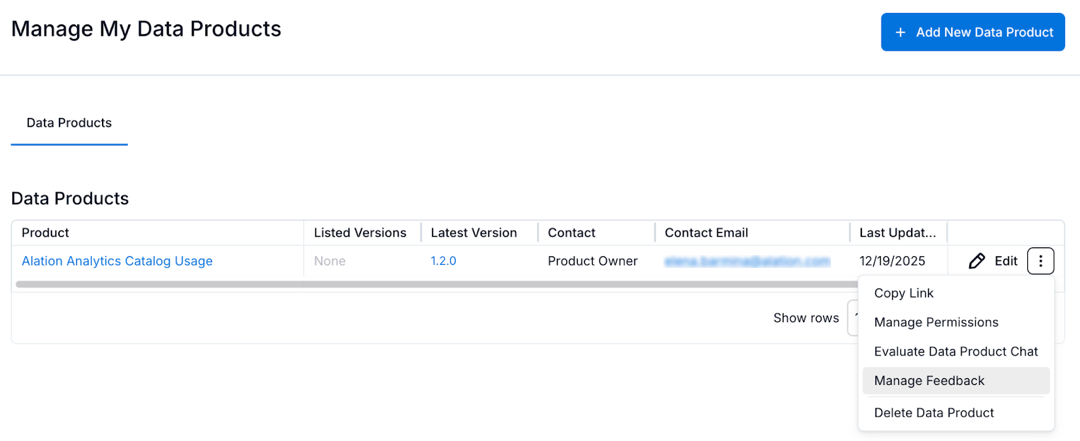
From My Data Products:
Open Data Products App > Manage My Data Products.
Locate the data product you want to review.
In the rightmost column, click the three-dots icon.
Select Manage Feedback. The Chat Feedback page opens.
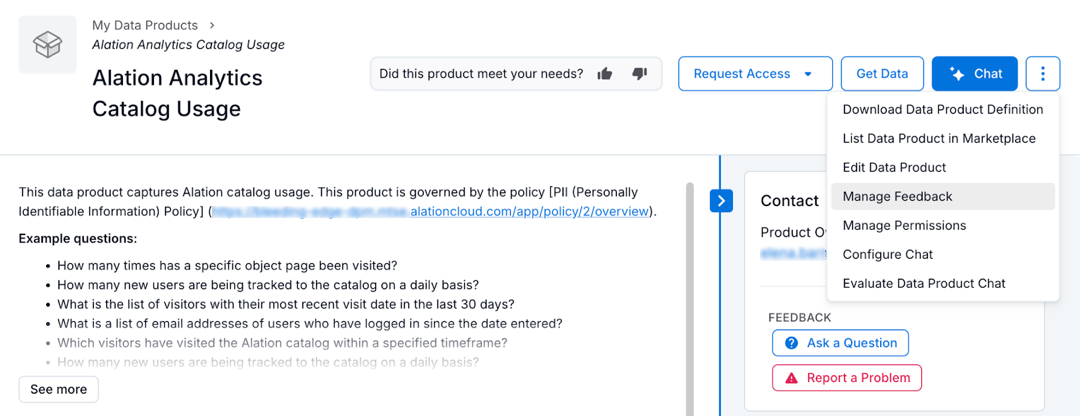
From the data product’s catalog page:
Open Data Products App > Manage My Data Products.
Locate and open the data product.
On the catalog page, click the three-dots icon in the top-right corner.
Select Manage Feedback. The Chat Feedback page opens.
Review Feedback
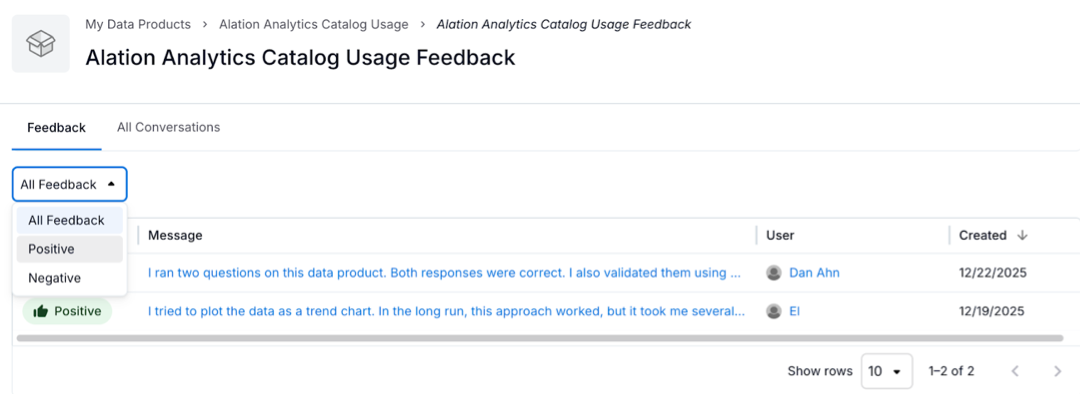
All feedback appears on the Feedback tab of the Chat Feedback page.
Feedback is categorized as Positive or Negative. Use the Feedback selector at the top of the page to filter by feedback type.
To inspect an individual piece of feedback:
If necessary, sort the feedback by the Created column to display the most recent feedback on top.
Click the entry in the Message column.
The chat view opens, displaying:
The user’s feedback details on the left
The specific chat response that triggered the feedback
To view the entire conversation that led to the feedback, click View full conversation at the top of the chat viewer.

How you respond to feedback depends on the issue and your goals for the data product. Common follow-up actions include:
Update the data product description to set better expectations, since this is what users see first when interacting with chat. Clearly describe how the data product is intended to be used, including common or recommended scenarios.
Add or improve metric metadata so chat responses have clearer and more accurate context.
Use the Evaluate feature to test your data product more and ensure you’ve tested it on the main queries.
View Saved Conversations
As a Data Product Admin, you can view saved chat conversations for the data products you can access.
Note
Users with access levels lower than Admin can’t review saved conversations at this time.
To view saved conversations:
Open the Feedback page for the data product.
Select the Conversations tab. This lists all saved chat conversations that are currently available to you.