
Share Alation Analytics Data with Your Snowflake Account
Alation Cloud Service Applies to Alation Cloud Service instances of Alation
Available from version 2025.3.1
Important
You are viewing documentation for Alation’s Classic User Experience.
Overview
Alation Analytics allows you to access a read-only replica of the analytics database directly within your own Snowflake account. This feature uses Snowflake’s native Data Sharing to enable powerful cross-reporting, allowing you to join Alation Analytics data with your own datasets to create customized reports.
Alation automatically determines the best sharing method based on your account’s location:
Direct Share: Used when your Snowflake account is in the same cloud and region as Alation’s.
Note
The Direct Share mechanism provides data in near real-time, with changes reflected immediately.
Secure Data Share (via Marketplace Listing): Used when your Snowflake account is in a different cloud or region.
Note
Data synchronization is scheduled once per day to the Marketplace listing, which defaults to 16:00 UTC. Contact Alation Support to modify the schedule.
Cost Considerations
Enabling this feature may incur compute costs from Snowflake.
Compute costs: You will be charged for virtual warehouse usage when you query the shared database from your Snowflake account.
Prerequisites
Before you begin, ensure the following conditions are met:
The Enable Alation Analytics Snowflake Sharing feature must be turned on in Admin Settings > Feature Configuration.
Note
Starting from version 2026.7.1.0, Server Admins can enable this feature directly in Feature Configuration. A support ticket is no longer required. Turning this feature on or off requires all users to refresh their browsers, so Alation displays a confirmation dialog before applying the change.
If data sharing is already active, disable it on the Alation Analytics Settings page before turning this feature off. Turning the feature off while a share is active does not remove the share. It only blocks the Disable data sharing action until the feature is turned back on. See Considerations for Disabling Snowflake Data Sharing.
Snowflake Replication must be enabled for your Alation instance. See Enable Snowflake Replication for Alation Analytics.
No previous data sharing or listing for the Alation Analytics database should already be active for your account.
You must have Server Admin privileges to access the Alation Analytics Settings page.
You must have your Snowflake account details:
Organization Name
Account Name
Snowflake Region
Enable Snowflake Data Sharing
In Alation, navigate to Admin Settings > Platform Settings > Alation Analytics Settings.
In Alation, navigate to Admin Settings > Alation Analytics Settings.
Scroll to the Snowflake Data Sharing section.
If a Server Admin hasn’t turned on the Enable Alation Analytics Snowflake Sharing feature, this section shows a message telling them to turn it on in Admin Settings > Feature Configuration.
To proceed, ask a Server Admin to turn on the Enable Alation Analytics Snowflake Sharing feature in Admin Settings > Feature Configuration, then return to this page.
Enter the following details:
Organization name: Your Snowflake organization name. In Snowflake, run the query
SELECT CURRENT_ORGANIZATION_NAME();and then copy-paste the value here.Account name: Your Snowflake account name. In Snowflake, run the query
SELECT CURRENT_ACCOUNT_NAME();and then copy-paste the value here.Region name: This is the region where your account is hosted. In Snowflake, run the query
SELECT CURRENT_REGION();and then copy-paste the value here.
Click Enable data sharing.
A dialog will appear with the next steps for accepting the share in your Snowflake account.
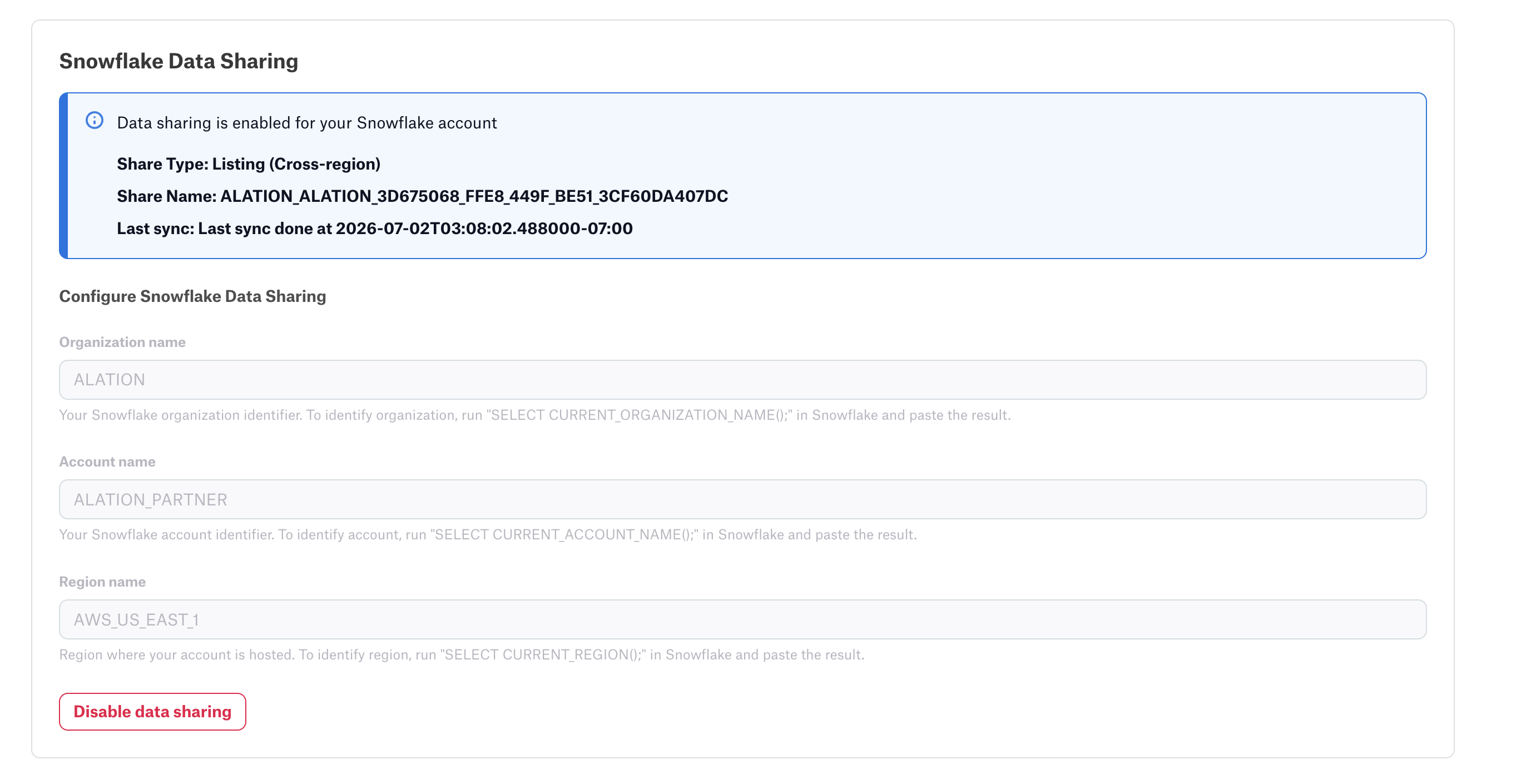
After you enable data sharing, the Snowflake Data Sharing section displays the share type and share name.
If your share type is Secure Data Share (Listing), the section also displays a Last sync field.
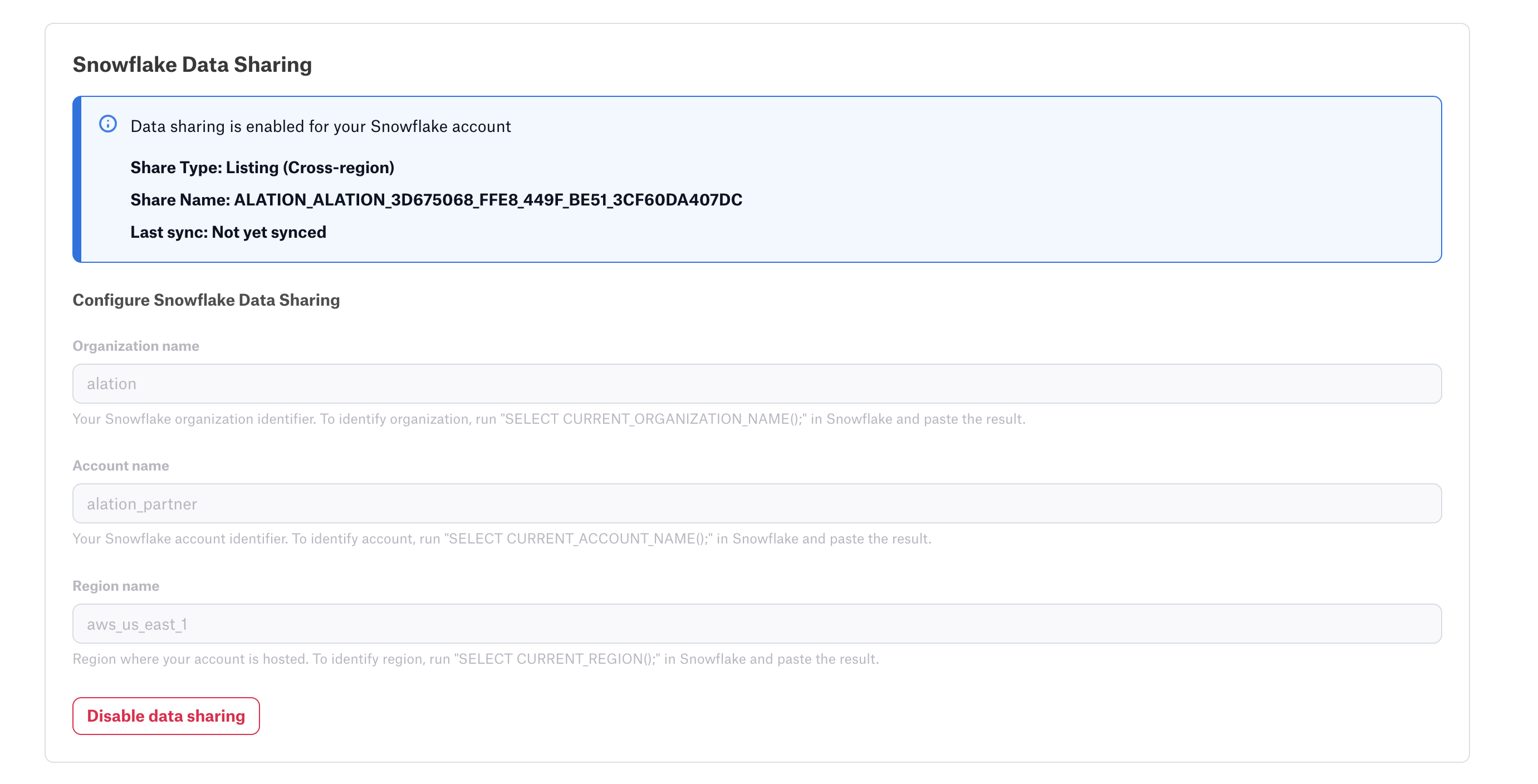
The Last sync field shows Not yet synced until the first data sync completes. Once the first sync completes, the field updates to show the date and time of the most recent sync.
Note
The Last sync field does not appear for a Direct Share. Direct Share reflects changes in your Snowflake account in near real-time rather than on a sync schedule, so there is no sync timestamp to display. For details on sync frequency by share type, see Overview.
Considerations for Disabling Snowflake Data Sharing
The data sharing feature permits sharing with only one Snowflake account at a time. To connect to a different account, you must first disable the existing share.
For a Direct Share: Access is immediately revoked, and the shared database is removed from your Snowflake account.
For a Secure Data Share (Listing): The database will remain in your Snowflake account, but it will no longer receive data updates.
You can also consider the following scenarios for disabling data sharing:
Cost Management: To stop incurring ongoing compute and storage costs from Snowflake, you would disable the share. This is a crucial step for managing your cloud data warehouse budget, especially if the shared data is not being actively used.
Revoking Data Access: You may need to permanently or temporarily revoke access for security or data governance reasons. This could be required at the end of a specific project, during a security audit, or if internal data policies change.
Troubleshooting the Connection: If you encounter issues with data synchronization or the connection itself, a standard troubleshooting step is to disable the feature and then re-enable it. This process can help re-establish a clean connection and resolve underlying sync problems.
Note
If a Server Admin turns off the Enable Alation Analytics Snowflake Sharing feature while a share is still active, the Snowflake Data Sharing section keeps showing the existing share details, including share type, share name, and (if applicable) Last sync. However, the Disable data sharing button becomes unavailable. Hovering over the button shows the message “Enable the Snowflake sharing feature flag to disable data sharing.”
To disable the share in this case, turn the feature back on, then click Disable data sharing.