
Configure STS Authentication with IAM Identity Center for Redshift OCF Connector
Alation Cloud Service Applies to Alation Cloud Service instances of Alation
Customer Managed Applies to customer-managed instances of Alation
Core Connector Core connectors are included with all Alation platform tiers (subject to each tier’s connector limits) and are fully supported by Alation.
This topic explains how to configure the STS - IAM Identity Center authentication type for an Amazon Redshift OCF data source. This authentication mode is available from connector version 1.12.4.
With this authentication type, the connector authenticates to AWS using STS AssumeRole and then connects to Redshift using the GetClusterCredentialsWithIAM API. The database username is derived automatically from the IAM session identity. It does not require DbUser, AutoCreate, or DbGroups configuration. This authentication type can be used if your organization uses AWS IAM Identity Center (formerly AWS SSO) with SCIM provisioning from an identity provider such as Microsoft Entra ID or Okta.
Note
For information about configuring SSO from Compose for an Amazon Redshift data source using IAM Identity Center, see Configure Redshift Compose SSO with IAM Identity Center Using SAML Federation.
Prerequisites
Before you configure the STS - IAM Identity Center authentication type, make sure you have:
An AWS account with IAM Identity Center enabled.
Users or groups provisioned into your AWS account via SCIM from your identity provider (for example, Entra ID or Okta). These provisioned identities map 1:1 to Redshift database users through the IAM session.
An IAM role that:
The Alation connector can assume via
AssumeRole(the role has a trust policy allowing the IAM user or AWS service you configure to assume it).Has the required IAM permissions for Redshift (see Required IAM Permissions below).
AWS access key ID and secret access key for an IAM user with permission to call
sts:AssumeRolefor the target role.Network connectivity from Alation to the Redshift cluster on port 5439.
Required IAM Permissions
Attach the following policy to the IAM role you will configure as the Role ARN in Alation. This grants the connector permission to call GetClusterCredentialsWithIAM, which derives the database username from the IAM session identity:
{
  "Version": "2012-10-17",
  "Statement": [
    {
      "Effect": "Allow",
      "Action": "redshift:GetClusterCredentialsWithIAM",
      "Resource": [
        "arn:aws:redshift:<region>:<account-id>:cluster:<cluster-id>",
        "arn:aws:redshift:<region>:<account-id>:dbname:<cluster-id>/*"
      ]
    }
  ]
}
Replace <region>, <account-id>, <cluster-id> with your values.
Note
This is different from the policy required for the STS - IAM User and STS - IAM Role authentication types, which use redshift:GetClusterCredentials. The GetClusterCredentialsWithIAM action does not require a dbuser resource. For details, see AWS documentation on GetClusterCredentialsWithIAM.
In addition, the IAM user whose access key you will provide in Alation must have permission to assume the role:
{
  "Version": "2012-10-17",
  "Statement": [
    {
      "Effect": "Allow",
      "Action": "sts:AssumeRole",
      "Resource": "arn:aws:iam::<account-id>:role/<your-role-name>"
    }
  ]
}
Configure the JDBC URI
Use the IAM-specific JDBC URI format for STS authentication.
Format for provisioned clusters:
redshift:iam://<hostname>:<port>/<database>?ClusterID=<cluster-id>&Region=<region>
Example:
redshift:iam://redshift-cluster.abc123.us-east-1.redshift.amazonaws.com:5439/dev?ClusterID=redshift-cluster&Region=us-east-1
Format for Redshift Serverless:
redshift:iam://<workgroup-endpoint>:<port>/<database>?ClusterID=redshift-serverless-<workgroup-name>
Note
Unlike the STS - IAM User and STS - IAM Role authentication types, you do not need to add DbUser, AutoCreate, or DbGroups parameters to the JDBC URI. The database username is derived automatically from the IAM session identity.
Configure the STS - IAM Identity Center Authentication Type in Alation
After completing the AWS prerequisites, configure the authentication type in Alation.
On the Settings page of your Amazon Redshift data source, go to the General Settings tab.
In the Provide the JDBC URI section, enter the JDBC URI in the IAM format. For details, see Configure the JDBC URI above.
Click Save.
In the Configure authentication step, select the STS - IAM Identity Center option.
The following image shows the STS - IAM Identity Center option selected in the Configure authentication step, with the fields it requires.
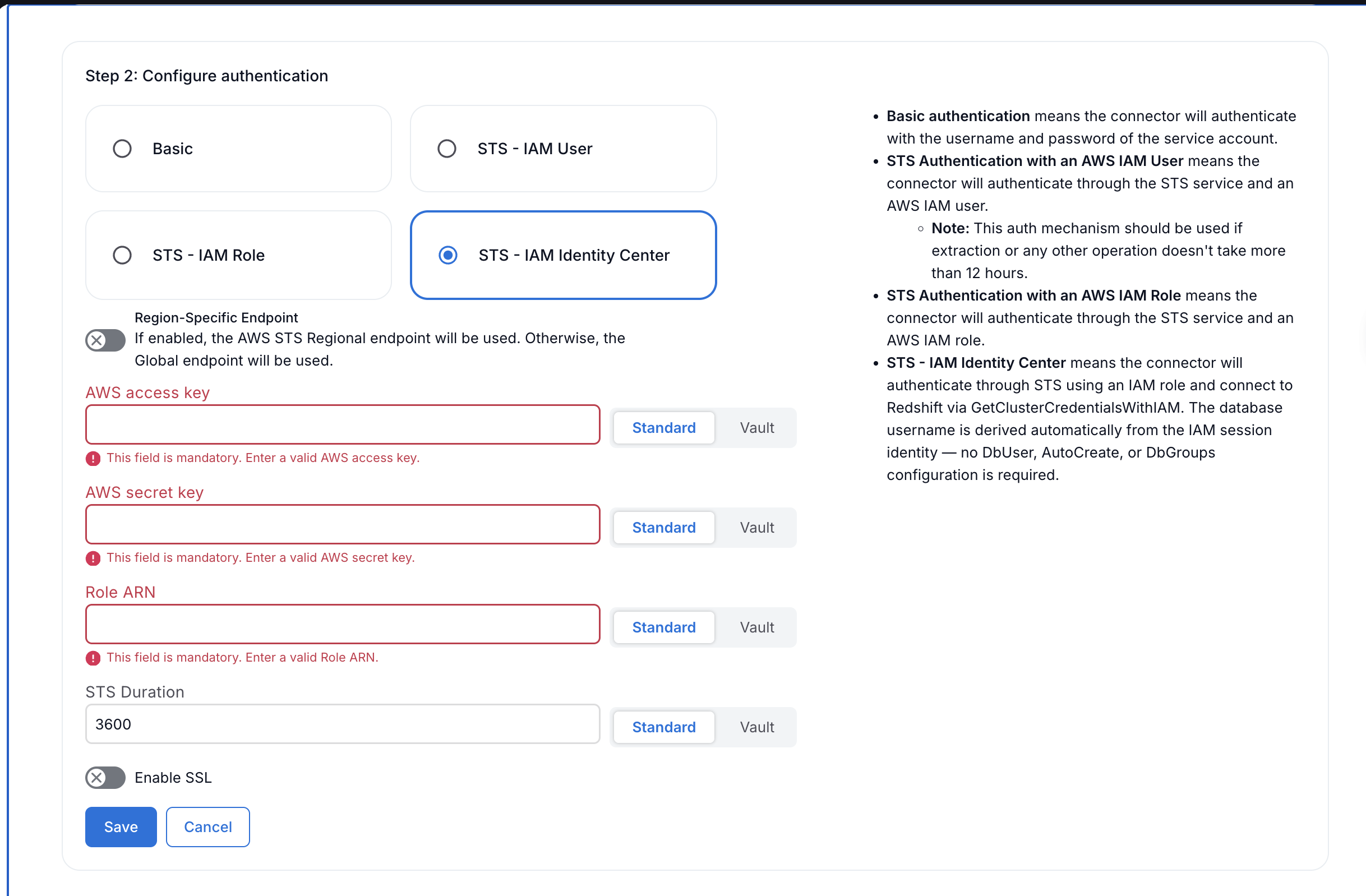
Configure the following fields:
Field
Description
Region-Specific Endpoint
Turn on this toggle to use the AWS STS regional endpoint for your AWS region instead of the global endpoint. The regional endpoint must be active in your AWS account.
AWS access key
Enter the access key ID of the IAM user that has permission to assume the role specified in Role ARN.
AWS secret key
Enter the secret access key of the IAM user.
Role ARN
Enter the ARN of the IAM role to assume. This role must have the
redshift:GetClusterCredentialsWithIAMpermission. For example:arn:aws:iam::123456789012:role/redshift-identity-centerSTS Duration
Enter the duration in seconds for the STS session token. The default value is 3600 seconds. This value must not exceed the Maximum session duration configured on the IAM role.
If your Redshift cluster requires SSL, turn on the Enable SSL toggle, enter the Truststore password, and upload the SSL certificate.
Click Save.
Click Test Connection to verify the connection. A confirmation dialog appears indicating whether the connection was successful.