
Chat with Alation Analytics
Alation Cloud Service Applies to Alation Cloud Service instances of Alation
Chat with Alation Analytics is a conversational interface built into Alation that lets you ask natural language questions about your catalog and receive structured answers. Instead of writing SQL queries in Compose, you describe what you want to know. Chat returns results drawn directly from certified Data Products.
Chat with Alation Analytics is scoped entirely to your catalog metadata. It surfaces everything that Alation Analytics tracks about your data assets, users, and catalog activity. If a data point is not tracked in Alation Analytics, Chat cannot surface it.
Note
Chat with Alation Analytics does not query your business data. It is a read-only interface and cannot modify any catalog objects.
Data Products in Alation Analytics
Chat with Alation Analytics includes two certified Data Products:
Alation Curation Analytics: Provides a queryable view of the documentation health of your catalog. Use it to identify assets with missing descriptions, find tables without assigned stewards, surface objects that lack governance coverage, and understand curation completeness across data sources, schemas, and domains.
Alation Usage Analytics: Shows how users interact with your catalog. Use it to understand visit patterns, identify inactive users, track feature adoption across roles, and analyze engagement trends over time.
Both Data Products are refreshed once every 24 hours, or at the frequency configured for your instance. You can query both in natural language through the Chat interface. Each Data Product is scoped to your instance’s Alation Analytics data only. No cross-tenant data or external sources are included. Both include a browsable preview schema so you can understand the data model before asking questions.
Chat Permissions in Alation Analytics
Chat with Alation Analytics is available to users who meet either of the following conditions:
They hold one of the following roles on the Alation instance: Catalog Admin, Server Admin, or Source Admin.
They have been granted Querier or Data Source Admin access to the Alation Analytics data source, either directly or through a group.
Access is enabled by default for qualifying instances on Alation Cloud Service. No administrator configuration is required.
Note
If you do not hold one of the three admin roles but have Querier or Data Source Admin access to the Alation Analytics data source, the Analytics icon appears in the left-side navigation. Both the Classic Alation Analytics tile and the Chat with Alation Analytics tile are also visible. If you have neither admin roles nor data source access, the Analytics icon does not appear in the navigation.
Note
Navigating directly to the Alation Analytics page URL does not currently enforce these access rules. Only the navigation icon and tiles reflect the access rules described above.
Pricing and Availability
Chat with Alation Analytics is available at no additional cost through June 30, 2026 for all Alation Cloud customers. You do not need an Alation Data Products Marketplace license to access it.
After June 30, 2026, Alation will charge for Chat with Alation Analytics under Alation Consumption Units (ACU). For more details, see Alation Consumption Units.
Access Chat with Alation Analytics
Before you begin, confirm that you meet one of the following conditions:
You hold the Catalog Admin, Server Admin, or Source Admin role on the Alation instance.
You have been granted Querier or Data Source Admin access to the Alation Analytics data source. For information on how access is granted, see User Access to Alation Analytics V2.
The first time you open Chat with Alation Analytics in a session, you are prompted to authenticate using the same credentials you use to access Alation Analytics in Compose. You do this once per session.
Note
For Chat options to be visible, enable Chat with Data Products in Settings > Feature Configuration.
To access Chat with Alation Analytics:
Log in to your Alation instance.
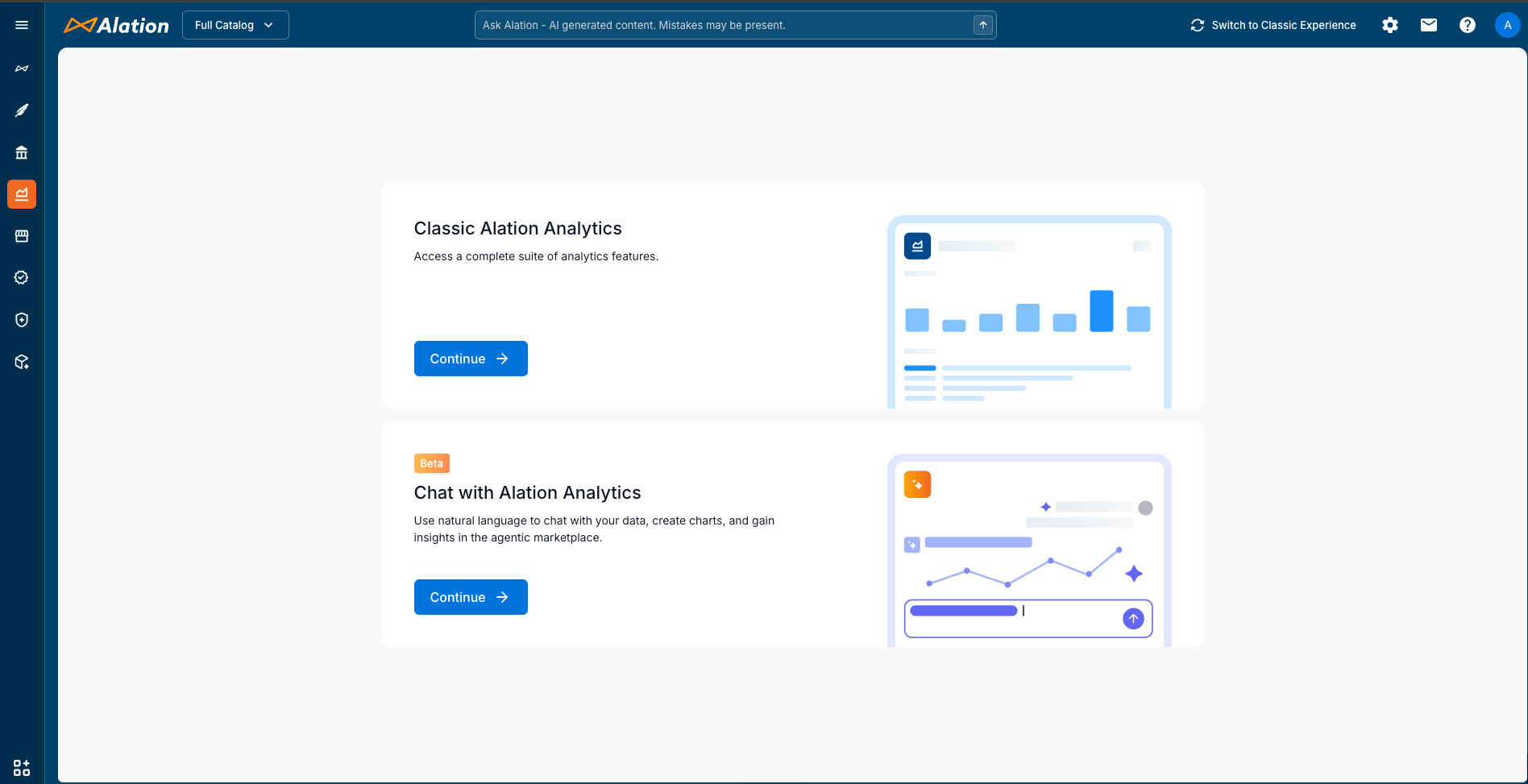
Click the Alation Analytics icon in the left-hand navigation bar.
Click Continue under Chat with Alation Analytics.
The Alation Analytics Marketplace page displays the two available Data Products.
Click the Data Product you want to query: Alation Curation Analytics or Alation Usage Analytics.
On the Data Product page, click Chat with Alation Curation Analytics or Chat with Alation Usage Analytics.
The Chat interface opens and displays a sign-in prompt.
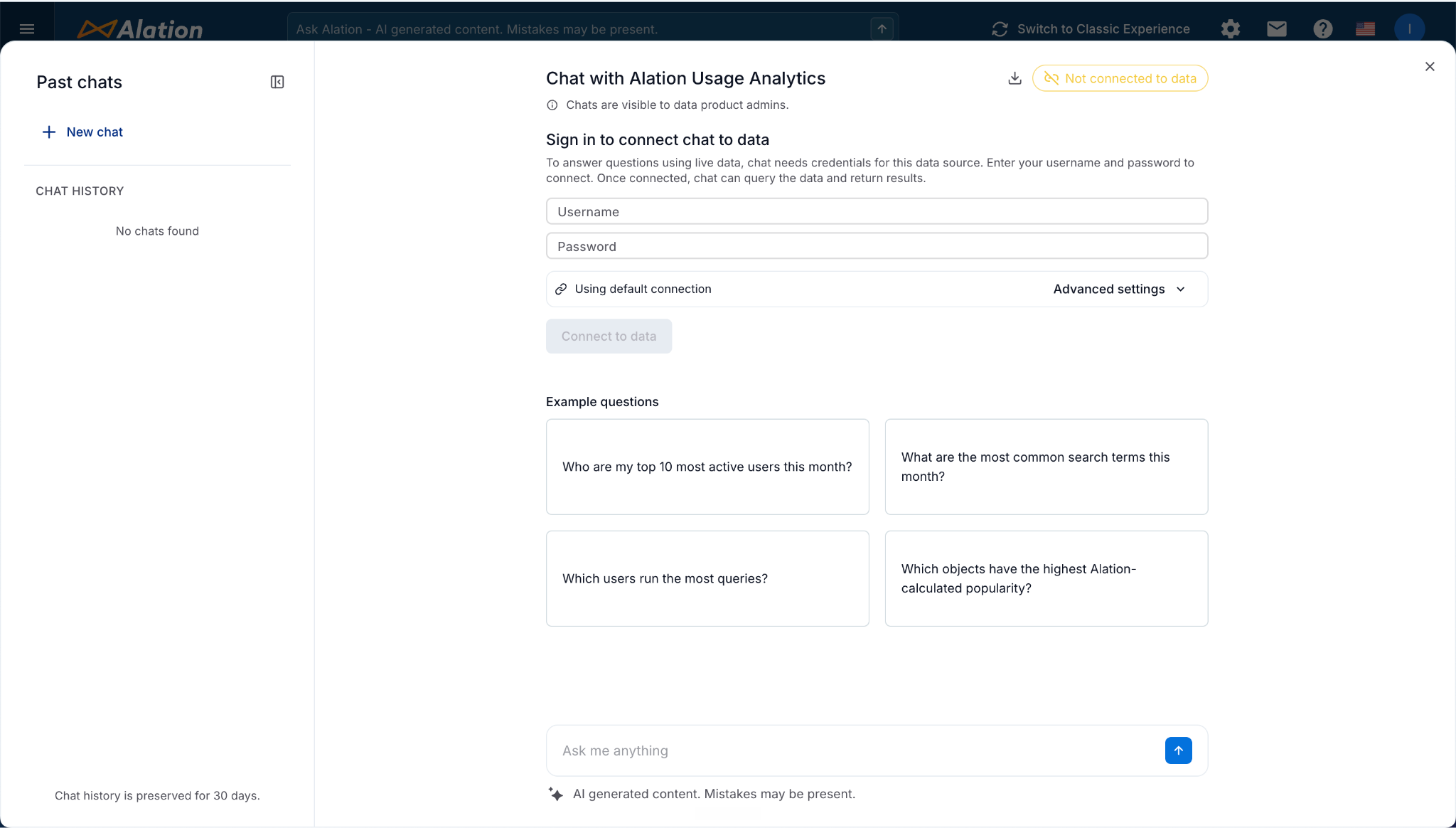
Enter your Alation Analytics username and password.
Click Connect to data.
Start asking questions in the chat input field.
The interface displays results inline as tables, summary counts, and visualizations. Follow-up questions are supported within the same session.
Note
Chat history is preserved for 30 days.
Prompt Effectiveness
The quality of Chat responses depends on the specificity and context of your questions. Use the guidelines in this section to write questions that return accurate and actionable results.
Context Sufficiency
Include the data source, schema, domain, object type, or time range relevant to your question. Vague questions return broad or incomplete results.
Less effective:
Show me undocumented tables.
More effective:
Show me all tables in the Finance and HR data sources that have no description
and have not been endorsed, sorted by popularity score descending.
Specify Custom Field Names and Their Allowed Values
If your question involves a custom field defined in your catalog, use the exact field name as it appears in Alation and provide the allowed values for that field. Without this information, Chat may not match the correct field or filter accurately.
Example:
List all tables where the custom field "Data Classification" (which uses the
values Public, Internal, or Restricted) is set to Restricted but has no
steward assigned.
Note
Custom field names are case-sensitive and must match the field name exactly as configured in your Alation instance.
Specify the Output Format
By default, Chat selects the output format it determines is most appropriate. If you need a specific format, include it in your question.
Supported output formats include:
Bar charts and other visualizations
Summary counts
Tables
Example:
Show me a bar chart of curation completeness by data source, limited to the
top 10 sources by popularity score.
Include a Time Range for Activity-Based Questions
Questions about user activity, query executions, or catalog visits should include a time range. Without a time range, Chat returns results across all available historical data.
Supported time expressions include:
Absolute ranges: “between January 1 and March 31, 2026”
Relative ranges: “in the last 30 days”, “in the past quarter”
Example:
Which users have had no catalog activity in the last 60 days, broken down
by user role?
Combine Multiple Filters in a Single Question
You can include multiple conditions in one question. Chat processes compound filters in a single query and returns results that satisfy all specified criteria.
Example:
Show me all tables in the Sales data source with a popularity score above 60,
no description, no steward assigned, and at least one column flagged as PII.
Return this as a table with columns for object name, schema, popularity score,
and PII column count.
Refine Results with Follow-Up Questions
If a response is not what you expected, continue the conversation rather than starting a new question. Follow-up questions build on the context of the previous exchange.
Example follow-ups:
Exclude anything in the Archive schema.
Break this down by domain instead of by data source.
Only show me objects modified in the last 90 days.
Example Questions
Use the following examples as a starting point for your own questions.
Alation Curation Analytics
“Show me all tables with missing descriptions across our Snowflake data sources, sorted by popularity score descending.”
“Which assets in the Finance domain have no steward assigned? Return this as a table with columns for object name, object type, and data source.”
“List all columns where the custom field ‘Data Classification’ (which uses the values Public, Internal, and Restricted) is set to Restricted, but are not linked to a governance policy. Include the parent table name and data source in the results.”
“How many schemas have less than 30% of their tables documented? For each schema, also show the value of the custom field ‘Data Domain Owner’ (which stores the name of the responsible team). Break this down by data source and show it as a bar chart.”
Alation Usage Analytics
“How many users have been active in the catalog in the last 30 days? Break this down by user role and show it as a bar chart.”
“Which users have not visited any catalog pages in the past 60 days? Filter to users where the custom field ‘Team’ (which uses values like Engineering, Finance, and Marketing) is set to Finance. Return a table with user name, user role, and last activity date.”
“Which users who joined in the last 30 days have already logged at least one catalog visit or query execution? Return a table with user name, join date, activity type, and the value of the custom field ‘Business Unit’ (which stores the user’s assigned business unit).”
“How many distinct users have executed at least one query in Compose this month? Break this down by data source and filter to users where the custom field ‘License Tier’ (which uses the values Standard and Premium) is set to Premium.”
Limitations
Chat with Alation Analytics has the following limitations:
No access to business data: Chat answers questions about catalog metadata only. It cannot run queries against your connected data sources such as Snowflake or Databricks.
Read-only: Chat cannot assign stewards, update descriptions, add tags, or modify any catalog object.
Cloud only: Chat with Alation Analytics is not available for on-premises deployments.
Bounded by Alation Analytics coverage: If a data point is not tracked in Alation Analytics, Chat cannot surface it. The scope of answers mirrors the scope of your Alation Analytics data.
Frequently Asked Questions
Who can see the Analytics icon and Chat with Alation Analytics tile?
The Analytics icon in the left-side navigation and both the Classic Alation Analytics tile and the Chat with Alation Analytics tile are visible to users who hold the Catalog Admin, Server Admin, or Source Admin role, or who have been granted Querier or Data Source Admin access to the Alation Analytics data source. Access through a group is also supported. Users who meet neither condition do not see the Analytics icon or tiles.
Does Chat with Alation Analytics replace Alation Analytics in Compose?
No. Compose access to Alation Analytics remains available and unchanged. Chat with Alation Analytics is an additional interface that makes the same underlying data accessible without requiring SQL. Users who prefer writing queries directly can continue to do so.
Can I download results from Chat?
You can download the Data Product Definition as a YAML specification. Query results displayed in Chat are also available as a data export. To download a visualization, open the chart view and download from there.
Can I edit a Data Product?
No. The Data Products available in Chat with Alation Analytics are read-only and cannot be edited.
What if I cannot see Chat with Alation Analytics in my navigation?
Confirm that you have a qualifying role (Catalog Admin, Server Admin, or Source Admin) and confirm your instance is on Alation Cloud Service. If the issue persists, contact your Alation administrator.
Is my data shared with anyone outside my instance?
No. Chat with Alation Analytics operates on your instance’s Alation Analytics data only. No data is shared across tenants.
Does Chat with Alation Analytics work for on-premises Alation deployments?
No. Chat with Alation Analytics is a cloud-only capability and is not available for on-premises deployments.
How will I be charged after June 30, 2026?
After June 30, 2026, Alation will charge for Chat with Alation Analytics under its consumption-based pricing model. Alation will share pricing details before consumption-based charging begins.
Send Feedback
If Chat cannot answer a question accurately, or if you encounter unexpected behavior,
send feedback to aa-dp-feedback@alation.com.