
Multi-Factor Authentication for the Alation Help Center
Alation Cloud Service Applies to Alation Cloud Service instances of Alation
Customer Managed Applies to customer-managed instances of Alation
Alation is adding multi-factor authentication (MFA) to the Alation Help Center login. This change adds an extra layer of protection for your account and the content you rely on. This topic explains what MFA is, what you’ll need before your first login after it is enabled, and how to complete verification.
What Is Multi-Factor Authentication?
Multi-factor authentication confirms your identity in more than one way when you sign in. After you enter your username and password, you also provide a verification code generated by an authenticator app on your mobile device. This means that even if someone else obtains or guesses your password, they still can’t access your account without that code.
Before You Log In
If you already have an authenticator app on your mobile device, such as Salesforce Authenticator, Google Authenticator, Microsoft Authenticator, or Authy, you’re ready to complete MFA setup the next time you log in. If you don’t have one yet, install an authenticator app from your device’s app store before you log in. You’ll only need to set this up once. After your initial setup, you’ll use your chosen app to verify your identity each time you log in to the Alation Help Center.
Set Up MFA (First Login)
Go to the Alation Help Center login page.
Enter your username and password. You’re taken to the Connect Salesforce Authenticator screen.
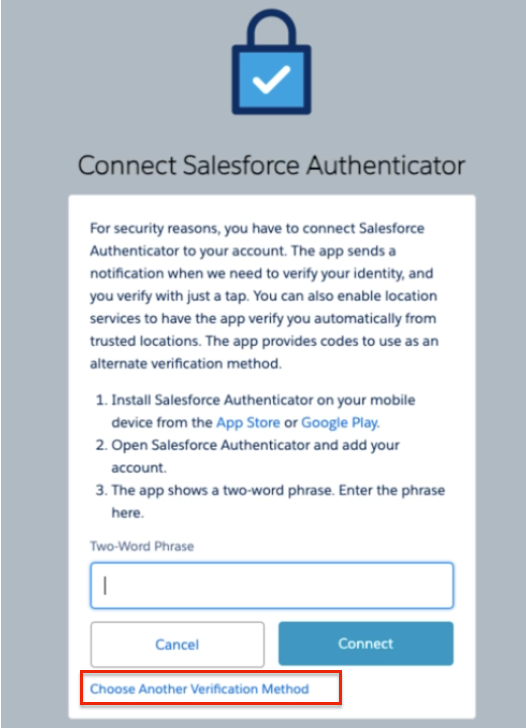
If you already have Salesforce Authenticator on your mobile device, or don’t mind installing it, follow the on-screen instructions: install the app from your device’s app store, open it and add your Alation Help Center account, then enter the two-word phrase the app generates in the Two-Word Phrase field and click Connect. Once verification is complete, you’re taken to the Help Center home page, and your setup is finished.
If you’d rather use a different authenticator app, select Choose Another Verification Method at the bottom of the screen, and continue with the following steps.
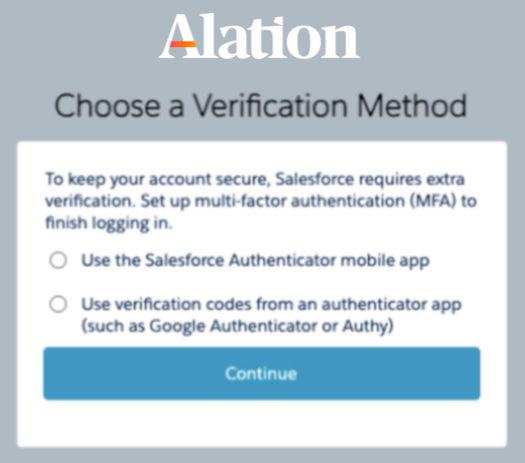
On the Choose a Verification Method screen, select Use verification codes from an authenticator app (such as Google Authenticator or Authy), then click Continue.
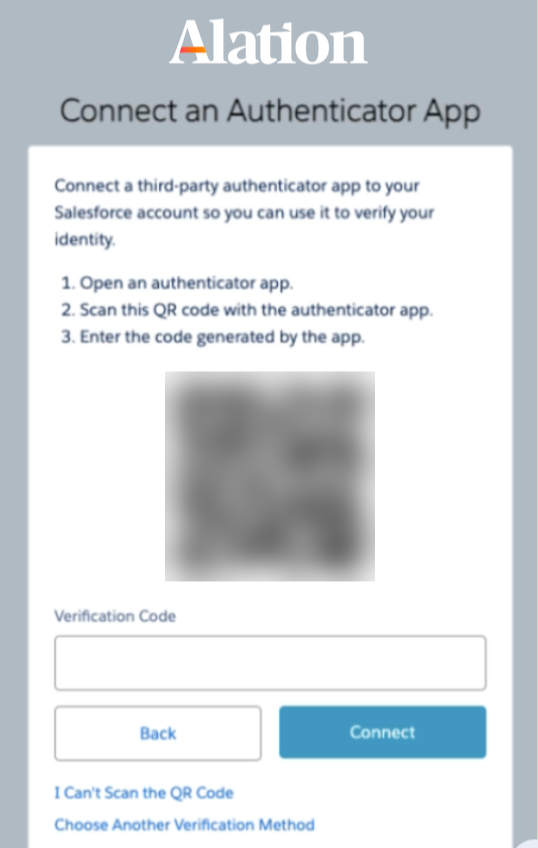
On the Connect an Authenticator App screen, open an authenticator app on your mobile device and scan the QR code with it. If you can’t scan the code, select I Can’t Scan the QR Code for an alternative. The exact steps depend on the app you chose, so refer to your app’s documentation if you need help adding an account.
Note
During setup, your authenticator app asks for your username, password, and the Help Center login URL (
https://help.alation.com).When your authenticator app displays a verification code, enter it in the Verification Code field, then click Connect.
The Help Center home page opens. Your MFA setup is complete.
Log In With MFA (Subsequent Logins)
After your initial setup, you verify your identity with your authenticator app each time you log in.
Go to the Alation Help Center login page and enter your username and password.
Open your authenticator app and find the current verification code for your Help Center account.
Enter the code in the Verification Code field.
Click Connect.
Verification codes refresh automatically. If a code doesn’t work, wait for the next one and try again.
Troubleshooting
If you run into an error or have trouble with your authenticator app, see Salesforce’s Common Multi-Factor Authentication (MFA) Troubleshooting article.