
Manage Connector Auto-Upgrade
Alation Cloud Service Applies to Alation Cloud Service instances of Alation
Important
This feature is available only on Alation Cloud Service instances running the cloud-native architecture.
Alation can automatically upgrade eligible core OCF connectors to the latest compatible version. Enhanced connectors are not included. A weekly process checks for newer versions, evaluates safety conditions, upgrades eligible connectors, validates the result, and attempts to restore the previous version if validation fails.
Alation enables automatic connector upgrades as part of a scheduled release. Customers are notified in advance before the capability is activated on their environment. Once enabled, Server Admins can turn auto-upgrade on or off for each connector from Admin Settings > Connectors.
How Automatic Upgrades Work
Every week, Alation runs the automatic upgrade process following these steps:
Evaluate: Each connector with auto-upgrade enabled is checked against eligibility conditions.
Upgrade: Connectors for which an upgrade is available are upgraded sequentially to the latest compatible version.
Validate: After upgrading, Alation runs the validation checks supported by that connector. Where Test Connection is available and a suitable data source can be selected, Alation uses it to confirm connectivity.
Restore or confirm: If validation passes, the upgrade is confirmed. If validation fails, Alation attempts to restore the previous connector version. If recovery cannot be completed, Server Admins receive an urgent alert with recovery steps. If no supported validation check is available, the new version remains installed without automatic validation.
Notify: A summary email is sent to all Server Admins.
Note
The default upgrade cycle runs every Saturday at 20:30 UTC. Alation notifies customers in advance before enabling automatic upgrades on their environment.
Manage Connector Auto-Upgrade
Each connector has an individual Auto-Upgrade toggle on the Connectors Dashboard. When the toggle is off, that connector will not be upgraded automatically.
Turn on the Auto-Upgrade toggle to enable automatic upgrades for a connector. Turn it off to disable automatic upgrades for that connector.
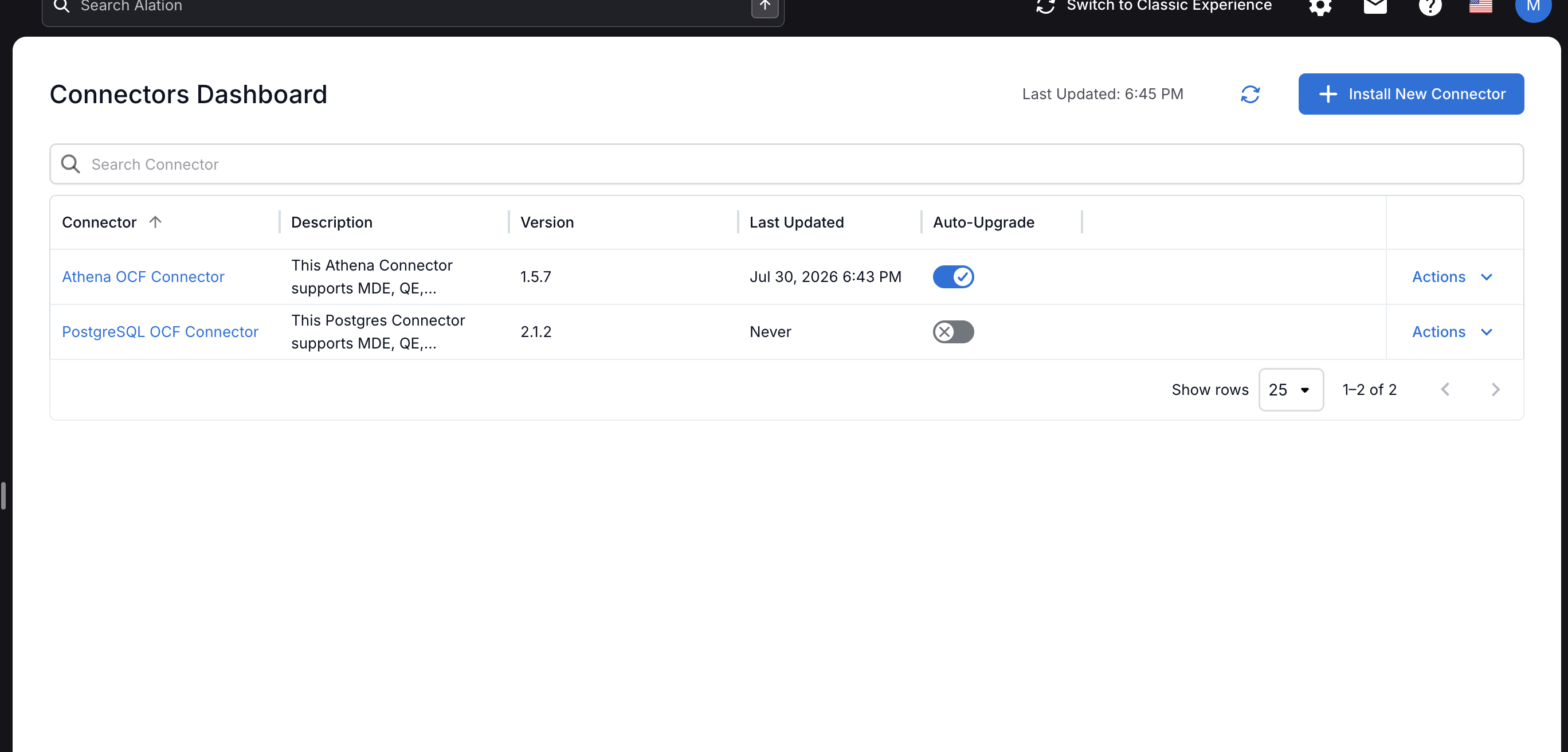
In this example, Athena OCF Connector has auto-upgrade enabled, while PostgreSQL OCF Connector has auto-upgrade disabled.
Configure Custom Schedule for Agent-Based Connectors
For agent-based connectors, you can set a custom schedule that controls when Alation attempts the upgrade. This overrides the default weekly timing for that connector.
To configure a custom schedule:
Go to Admin Settings > Connectors.
Click the connector name to open the detail page.
In the Auto-Upgrade Schedule section, enable Enable custom Auto-Upgrade schedule (overrides auto-detected timing).
Select the frequency (week or month(s)) and choose the day and time.
Click Save.
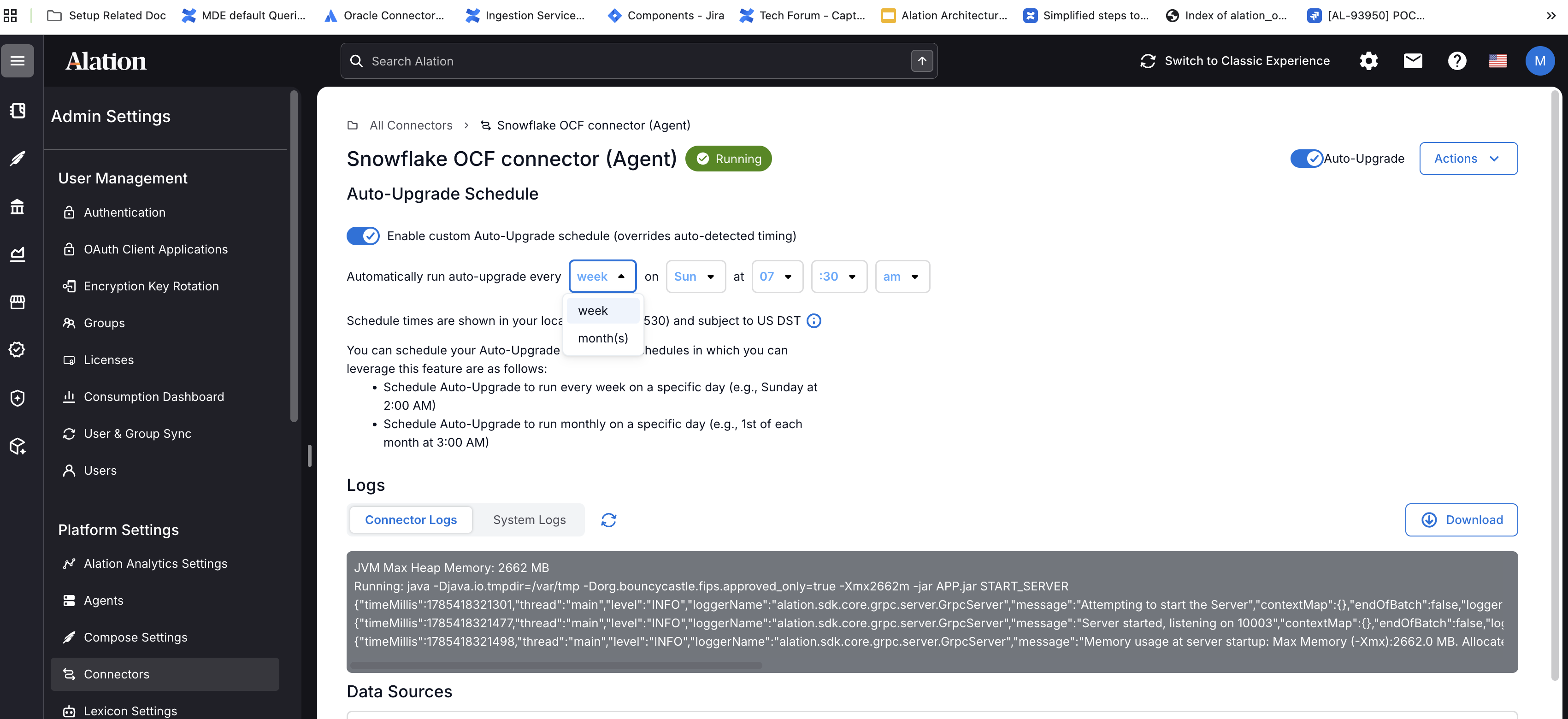
Schedule options:
Weekly: Attempt the upgrade every week on a specific day and time (for example, Sunday at 7:30 AM).
Monthly: Attempt the upgrade on a specific day of the month (for example, 1st of each month at 3:00 AM).
Schedule times are shown in your local timezone.
A custom schedule controls when Alation attempts the upgrade. The upgrade may still be skipped if the agent is offline or a job is currently running. Custom scheduling is only available for agent-based connectors.
Downgrade to Previous Version
If a connector was automatically upgraded and you want to revert to the previous version, use the Downgrade option in the Actions menu.
To downgrade a connector:
Go to Admin Settings > Connectors.
Find the connector and click Actions.
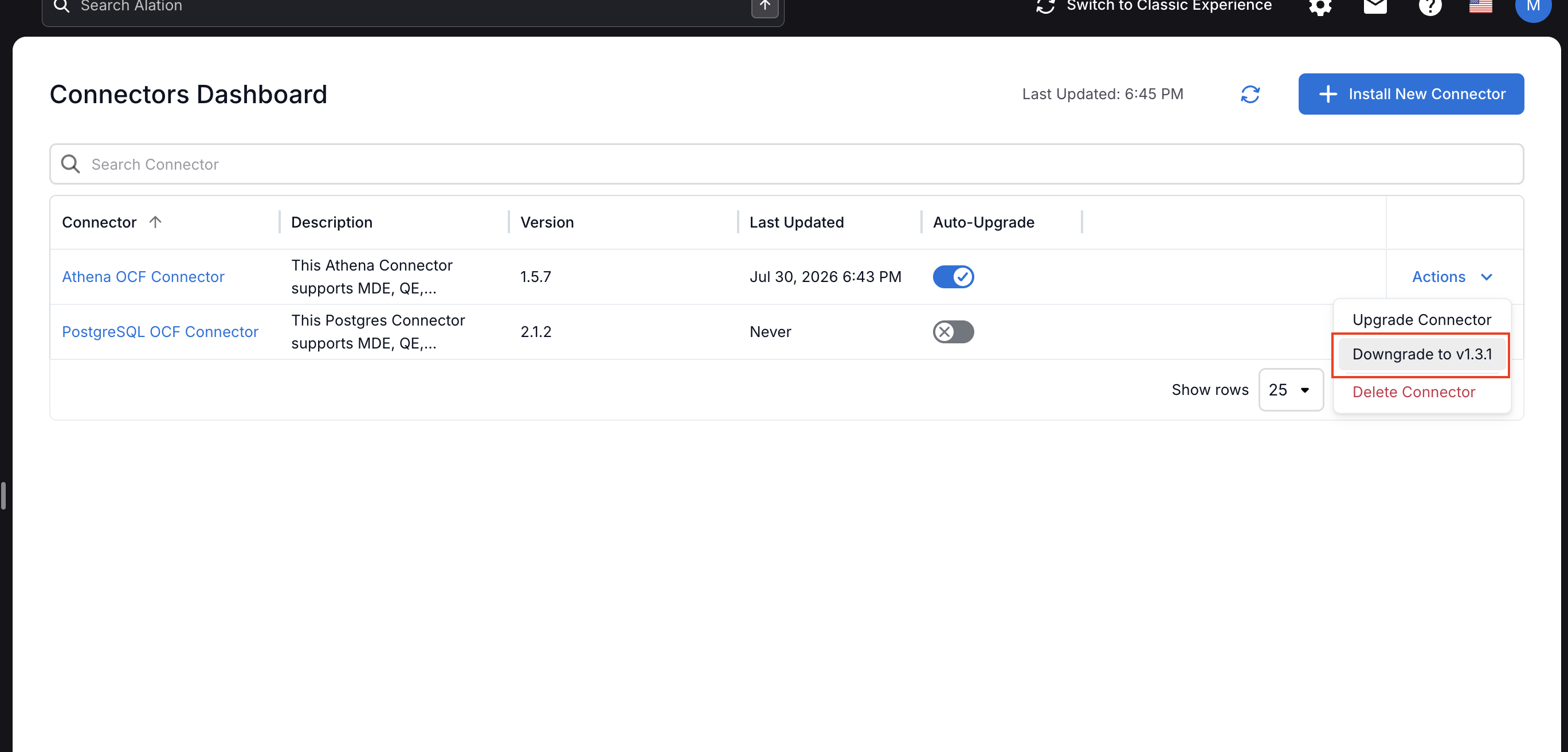
Click Downgrade to vX.X.X (the previous version is shown in the button label).
Confirm the downgrade.
Important
The Downgrade option is available only when a backup of the previous connector package exists. This backup is created automatically during the upgrade process.
Downgrade restores only the previous connector package. It does not reverse configuration changes introduced by the newer version.
After a manual downgrade, automatic upgrades are paused for that connector for four weeks to prevent Alation from re-upgrading it.
If no Downgrade option appears in the Actions menu, a backup is not available for that connector.
Auto-Upgrade Eligibility and Exceptions
Alation checks several eligibility conditions before performing an auto-upgrade. If a connector does not qualify, it remains unchanged until the next upgrade cycle.
Scenario |
Alation Action |
Next Steps |
|---|---|---|
Auto-Upgrade toggle is off |
Leaves the connector unchanged. |
Turn the toggle on when you are ready. |
No newer version is available |
No action is taken. |
Nothing required. The connector is already current. |
The available version does not support automatic upgrade |
Leaves the connector unchanged. |
Nothing required. A future version may re-enable support. |
The installed version is too old for a direct upgrade |
Leaves the connector unchanged. |
Upgrade manually to the required intermediate version from the Connectors Dashboard. |
Multiple versions of the same connector are installed |
Leaves all affected instances unchanged. |
Align all instances to a single version. |
The agent is offline |
Skips this attempt. |
Nothing required. Alation will try again in the next scheduled attempt when the agent reconnects. |
A connector job is running on an agent-based connector |
Skips this attempt. |
Nothing required. Alation will try again in the next scheduled attempt after the job completes. |
The connector was recently downgraded |
Skips this attempt for four weeks. |
Nothing required. Automatic upgrades resume after the cooldown period. |
A previous automatic upgrade failed |
Does not retry automatically. |
Select Actions > Retry Auto-Upgrade to allow it to be considered in the next cycle. |
Note
Cloud connectors and agent-based connectors are evaluated independently. Having the same connector at different versions on different agents, or between cloud and agent deployments, does not prevent automatic upgrades.
Validation and Recovery
After upgrading a connector, Alation validates the result using the checks available for that connector type:
Container health (agent-based connectors): Alation checks whether the connector container is running after the upgrade.
Test Connection (where available): If the connector has a data source with a successful Test Connection history, Alation runs Test Connection to confirm connectivity. If it fails after two retries, Alation attempts to restore the previous version.
If validation fails, Alation attempts to restore the previous connector version automatically. In most cases, no manual action is required.
If recovery cannot be completed (for example, if the backup package is missing or corrupt), Server Admins receive an urgent alert email with the connector name, what happened, and step-by-step instructions to resolve the issue.
Important
Not all connectors support Test Connection, and not all data sources have a successful Test Connection history. In those cases, Alation relies only on container health checks (for agent-based connectors). Cloud connectors without Test Connection history are upgraded without automatic validation — monitor them after the upgrade cycle.
Running Cloud Jobs
An automatic upgrade does not stop a cloud metadata extraction that is already running. The upgrade replaces the connector for future jobs. Any extraction already in progress completes using the previous version, and future jobs use the upgraded connector version.
No Full Extraction After Upgrade
Alation does not run a full metadata extraction as part of post-upgrade validation. Validation is limited to connectivity checks (Test Connection). The connector’s regular metadata extraction schedule continues as configured. If you want to confirm extraction health after an upgrade, you can manually trigger a metadata extraction from the data source settings.
Email Notifications
Server Admins receive email notifications about automatic upgrade activity:
Weekly Summary
After each cycle completes, a summary email is sent with two sections:
Not upgraded: Lists connectors that were not upgraded, along with what happened and whether any action is needed.
Upgraded: Lists connectors that were successfully upgraded with the version change.
The email subject indicates whether action is needed: “[Alation] Auto-upgrade — X connector(s) need attention” or “[Alation] Auto-upgrade complete — no action needed”.
Urgent Recovery Alert
If Alation cannot restore the previous version after a failed validation, an immediate alert email is sent to all Server Admins with:
The connector name and versions involved.
A description of what happened.
Step-by-step recovery instructions.
Retry After Failure
After an automatic upgrade attempt fails, Alation does not retry that connector automatically. This prevents repeated failures on a connector that may have an underlying issue.
To allow Alation to try again:
Go to Admin Settings > Connectors.
Find the connector (it will show a failure indicator).
Click Actions > Retry Auto-Upgrade.
This clears the failure status and allows the connector to be considered in the next cycle.
Limitations
Automatic connector upgrades are available only on Alation Cloud Service instances running the cloud-native architecture.
Validation capabilities depend on the connector type and its history. Agent-based connectors support container health checks and Test Connection. Cloud connectors support Test Connection only. If neither is available, the connector is upgraded without automatic validation.
Configuration changes introduced by a newer connector version are not reversed during a downgrade. Only the connector package is restored.
The Downgrade option is not available if a backup was not created (for example, on the very first upgrade of a freshly installed connector).