
Configure Connection to the Sigma BI Source
Alation Cloud Service Applies to Alation Cloud Service instances of Alation
Customer Managed Applies to customer-managed instances of Alation
Enhanced Connector Enhanced connectors add extended capabilities and require a separate entitlement in addition to your Alation platform license.
Configure the Sigma BI Source
This section describes configuring settings for credentials and connection information in the General Settings tab.
If your organization has configured Azure KeyVault or AWS Secrets Manager to hold such information, the user interface for the General Settings page will change to include the following icons to the right of most options:

By default, the database icon (right) is selected, as shown. In the vault case (lock icon on left), instead of the actual credential information, you enter the ID of the secret. See Configure Secrets for OCF Connector Settings for details.
Perform the configuration on the Settings page:
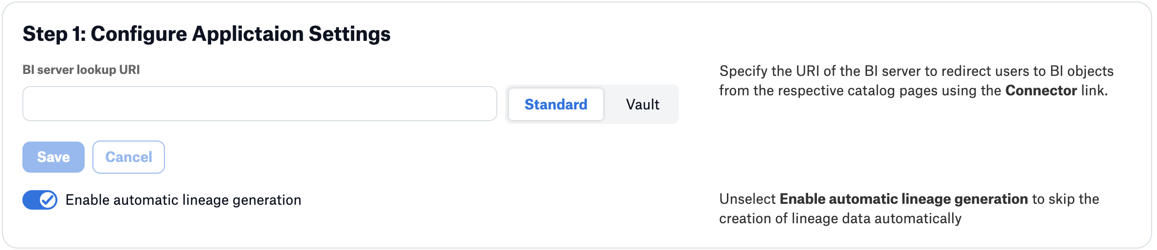
Specify the Application Settings:
Parameter |
Description |
Enable Raw Dump or Replay |
The options in this drop list can dump the extracted metadata into files to debug extraction issues before ingesting the metadata into Alation. This feature can be used during testing if there are issues with MDE. It breaks extraction into two steps: first, the extracted metadata is dumped into files and can be viewed, and second, it can be ingested from the files into Alation. It is recommended to keep this feature enabled only if debugging is required.
|
Disable Automatic Lineage Generation |
Select the Disable Automatic Lineage Generation checkbox to skip the creation of automatic Lineage after extraction. When automatic Lineage generation is disabled, Alation does not calculate Lineage data for this BI source during extraction. For more information, see Disable Automatic Lineage Generation. |
Disable Permission Enforcement |
Controls whether Sigma permissions are mirrored to Alation.
|
Server URI |
Enter the server URI used to access Sigma. This should be your organization context root: https://app.sigmacomputing.com/organisation/ Note: The URL must include the final forward slash. |
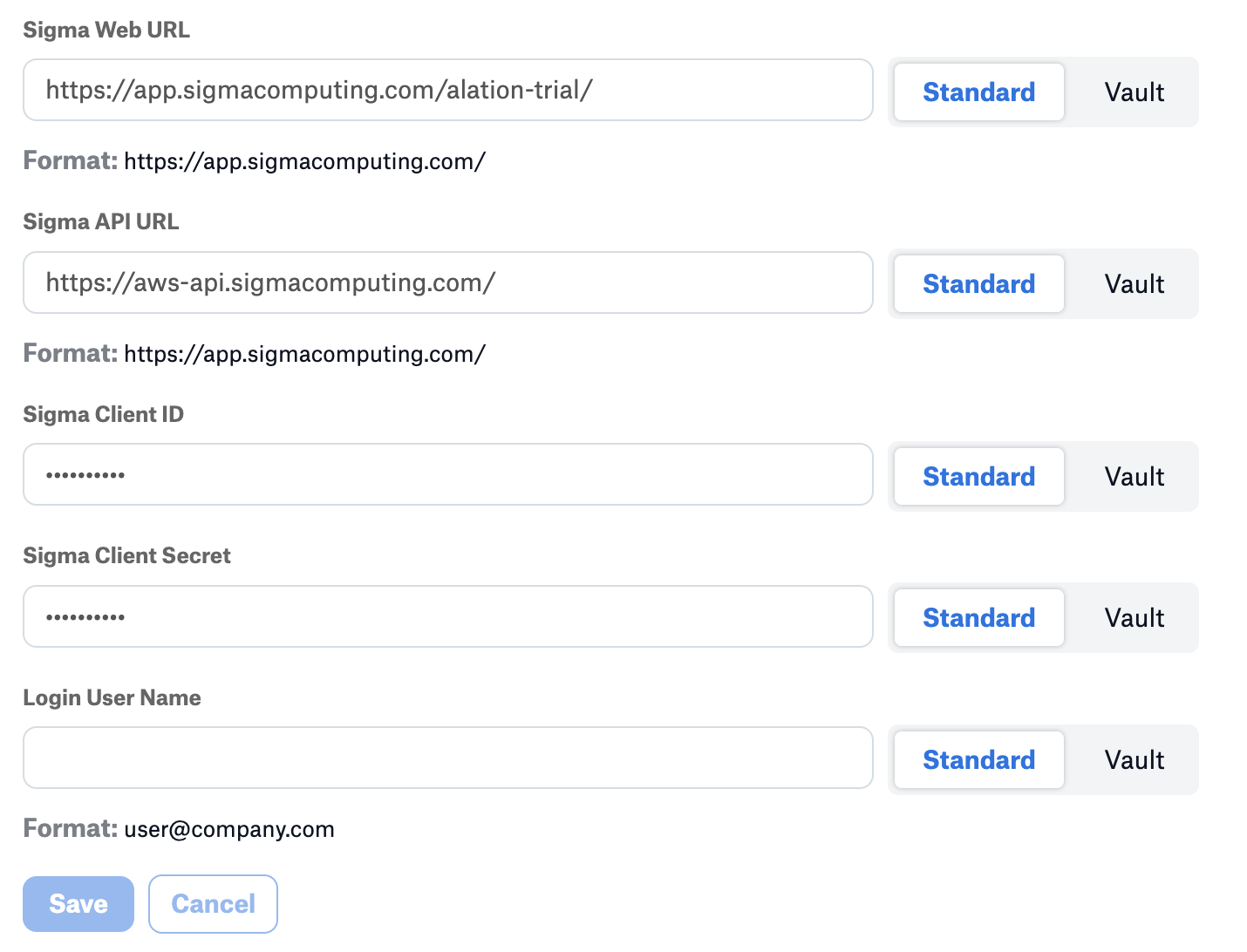
Specify Connector Settings:
Parameter |
Description |
Sigma Web URL |
Specify the URL to access Sigma. This should match the Server URI parameter value entered in the Application Settings. |
Sigma API URL |
Specify the API URL to access Sigma APIs. The Sigma API URL used is specific to the cloud provider your Sigma instance is running on. Your Sigma Administrator should provide the cloud provider. See Sigma Cloud Provider Determination for the details. After the cloud provider is determined, use the following to determine your specific Sigma API URL:
|
Sigma Client ID |
Specify the Sigma client ID. See the Prerequisites page for details. |
Sigma Client Secret |
Specify the Sigma client secret. See the Prerequisites page for details. |
Sigma OCF License Key |
This can be left blank as no license key is currently required by this connector. |
Proxy URL |
Specify the URL to access Sigma via a proxy server. This optional field should be used only if the Sigma OCF connection occurs over a proxy. This field should be left blank for Alation Cloud Services customers. |
Proxy Port |
Specify the proxy port number. This optional field should be used only if the Sigma OCF connection occurs over a proxy. This field should be left blank for Alation Cloud Services customers. |
Proxy Username |
Specify the proxy server username. This optional field should be used only if the Sigma OCF connection occurs over a proxy. This field should be left blank for Alation Cloud Services customers. |
Proxy Password |
Specify the proxy server password. This optional field should be used only if the Sigma OCF connection occurs over a proxy. This field should be left blank for Alation Cloud Services customers. |
Log Level |
Select the log level to generate logs. The available options are INFO, DEBUG, WARN, TRACE, ERROR, FATAL, ALL. |
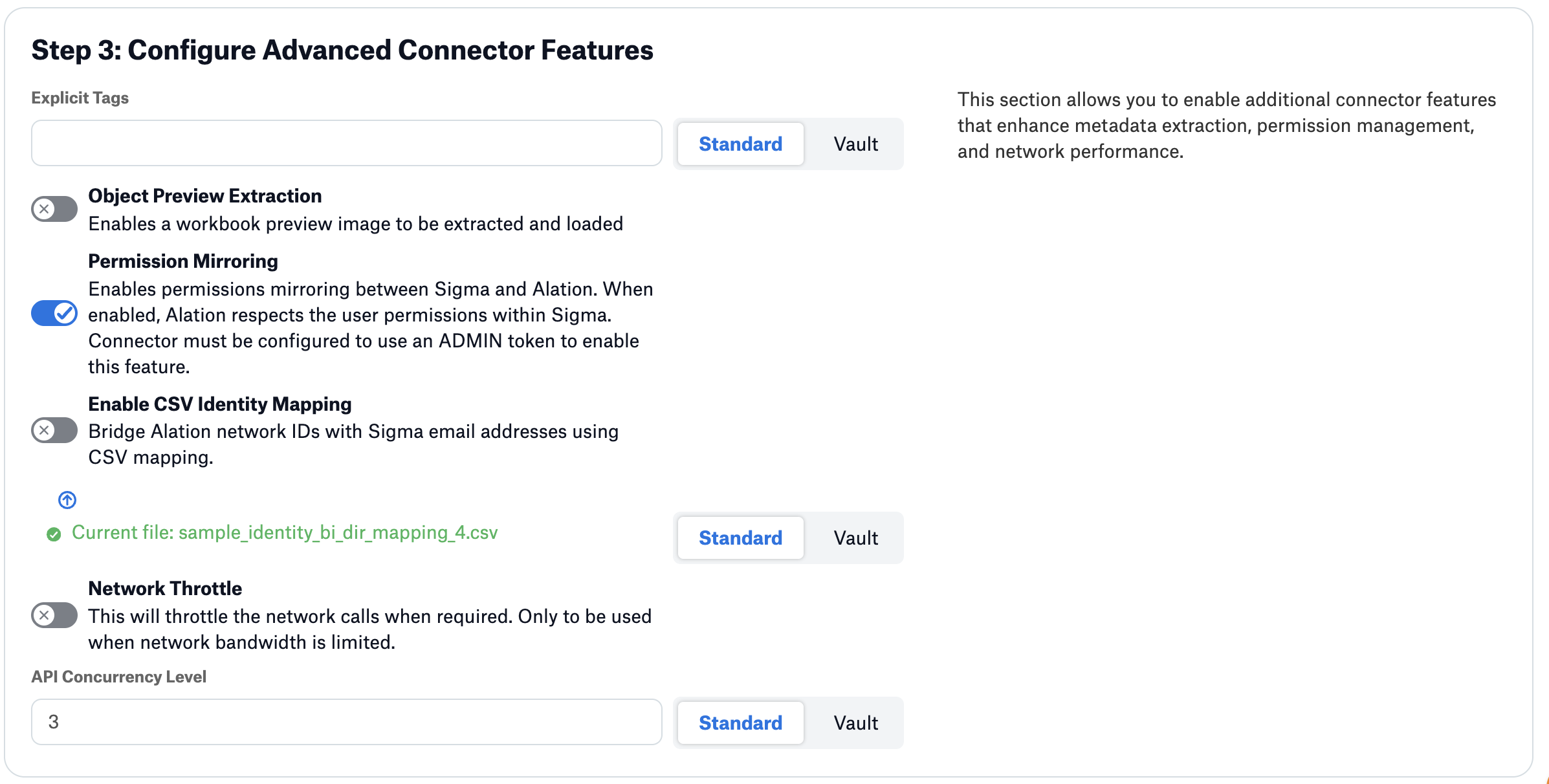
Specify Advanced Connector Features:
Parameter
Description
Explicit Tags
Allows a comma-separated list of tags to filter the objects exported from Sigma. Only objects with matching tags will be extracted. Leave blank to extract all objects.
Object Preview Extraction
When enabled, extracts workbook preview images to be displayed in Alation.
Permission Mirroring
Enables permissions mirroring between Sigma and Alation. When enabled, Alation respects the user permissions within Sigma. The connector must be configured to use Admin-level API credentials to enable this feature.
Login User Name
Specify a single Alation user email to extract metadata. This field is mandatory when Permission Mirroring is disabled, and optional when Permission Mirroring is enabled.
Enable CSV Identity Mapping
Bridge Alation network IDs with Sigma email addresses using CSV mapping. This option is available when Permission Mirroring is enabled.
CSV Identity Mapping File
Upload a CSV file with mappings between Alation network IDs and Sigma email addresses. Format:
network_id,sigma_email. Example:F0S1700,john.doe@company.comNetwork Throttle
Throttles network calls when enabled. Only use when network bandwidth is limited.
API Concurrency Level
Number of concurrent threads for parallel API processing (1–10, default: 3). Higher values increase extraction speed but may impact Sigma API stability. Use 3–5 for shared instances, up to 10 for dedicated instances.
Click Save to save the information you have entered.
Under Test Connection, click Test to validate network connectivity. If the test fails, double check all the above settings.

Permission Mirroring
Permission mirroring in the Sigma OCF connector ensures that user access to Sigma objects shown in Alation matches the permissions those users have in Sigma. When enabled, users in Alation will only see Sigma workspaces, folders, workbooks, pages, and datasets they are authorized to view—maintaining consistent visibility and governance across both systems.
During metadata extraction the connector queries Sigma APIs to fetch user- and group-level access details for supported Sigma objects and then filters the cataloged Sigma content so each Alation user can view only what they are permitted to access in Sigma. If permissions change in Sigma, those updates are reflected in Alation on the next extraction run.
How Permission Mirroring Works
When Permission Mirroring is turned on, the connector retrieves permission data from Sigma alongside the metadata for available workspaces, folders, workbooks, pages, and datasets.
Visibility rule: Only view permissions are used to determine whether an object is shown in Alation. If a user can view an object in Sigma, they will see it in Alation.
The connector accounts for direct user permissions and group-level permissions to produce accurate access mapping.
Permission data is applied at extraction time and stored so Alation can enforce the same visibility rules as Sigma.
Enable Permission Mirroring
To enable permission mirroring for your Sigma source:
Go to General Settings for your Sigma BI source in Alation.
Turn on the Permission Mirroring toggle.
This option is off by default.
Note
Enabling permission mirroring may increase extraction time because Alation retrieves permissions for each supported Sigma object individually.
During Selective Extraction, the Select Workspaces for Extraction list will display only the workspaces that the configured Sigma user or mapped account has access to. If that user has full access, all workspaces will be displayed.