
Google BigQuery Service Account Authentication for Data Products
Alation Cloud Service Applies to Alation Cloud Service instances of Alation
When using Google BigQuery as a data source for data products, each user authenticates to the Chat and Chat Evaluation features by uploading their own Google Cloud Platform (GCP) Service Account JSON key file.
This topic explains how to set up and use service account authentication for BigQuery-backed data products in Alation:
Prerequisites
BigQuery Open Connector Framework (OCF) Connector version 1.6.0 or later
Note
BigQuery connector versions earlier than 1.6.0 do not support service account authentication for data products. The GBQ Service Account option appears in the user interface, but authentication will fail with an unknown authentication type error. Upgrade your BigQuery connector to version 1.6.0 or later before using this feature.
Data Source: A Google BigQuery data source must already be cataloged in Alation. For information on adding BigQuery data sources, see Google BigQuery OCF Connector.
Permissions:
Alation: You must have the Server Admin, Catalog Admin, or Source Admin role to configure authentication on the data product.
Google Cloud: Each user who needs to connect to the data product must have a GCP service account with the appropriate Identity and Access Management (IAM) permissions on the BigQuery project and datasets included in the data product.
Important
This authentication type does not use the connector-level service account configured in the data source settings. Each user provides their own service account key independently.
Step 1: Create a GCP Service Account
Each user who connects to a BigQuery data product from Alation must have their own GCP service account key file. To create a service account and generate a key:
In the Google Cloud Console, navigate to IAM & Admin > Service Accounts.
Create a service account or select an existing one.
Grant the service account at minimum the following roles on the relevant BigQuery project:
BigQuery Data Viewer— to read table data.BigQuery Job User— to run queries.
Generate a JSON key file for the service account. For detailed steps, refer to the Google Cloud documentation on service account keys.
Save the key file securely. You will upload it when authenticating to the data product.
Service Account JSON Key File Format
The uploaded file must be a standard GCP service account key in JSON format, downloaded from the Google Cloud Console. For example:
{
  "type": "service_account",
  "project_id": "your-project-id",
  "private_key_id": "...",
  "private_key": "-----BEGIN PRIVATE KEY-----\n...\n-----END PRIVATE KEY-----\n",
  "client_email": "sa-name@your-project-id.iam.gserviceaccount.com",
  "client_id": "...",
  "auth_uri": "https://accounts.google.com/o/oauth2/auth",
  "token_uri": "https://oauth2.googleapis.com/token"
}
The file must:
Be valid JSON.
Include a
client_emailfield.Use one of the following supported file extensions: .json.
Step 2: Configure Authentication for the Data Product
To enable BigQuery service account authentication for a data product:
Navigate to Data Products App from the left-side navigation.
Select My Data Products.
Locate the data product to configure.
Choose one of the following paths:
From the Data Products table, click the Edit icon. You are taken to the data product builder page. On the right side of the page, select the Configure tab.
From the Data Products table, click the data product name. The catalog page of the data product opens. Click the three-dot menu on the top right and select Configure Chat.
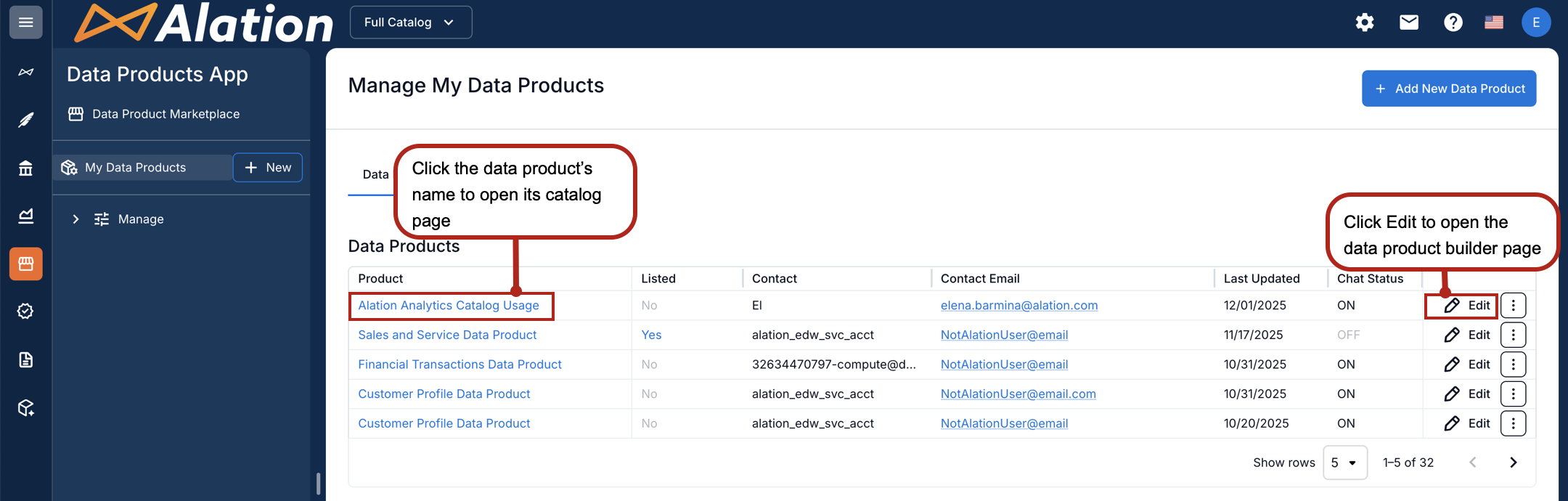
Under Configure, expand Configure Connection.

Select GBQ Service Account.
On the top right of the data product builder, click Save.
Evaluate the data product before enabling Chat for your users.
How It Works
The key is base64-encoded and securely stored as a per-user credential. Credentials are not shared between users.
When a query is executed, the backend retrieves and decodes your key and passes it to the BigQuery connector.
The connector uses the key to authenticate directly with the BigQuery API.
Step 3: Authenticate via Chat
Once the data product is configured with BigQuery service account authentication:
Navigate to Data Products App from the left-side navigation.
Open the data product from the Marketplace or My Data Products.
Click the Chat button on the top right. The chat panel opens.
Click the connection indicator Missing connection.
The chat displays a Sign in to connect chat to data prompt.
Click Choose File and select your GCP service account JSON key file (.json format).
The file is validated client-side. The file must be valid JSON and include a
client_emailfield.Click Connect to data. The connection status updates to Connected to data.
Type your question at the bottom of the panel and click the Send icon. The chat returns reports and summaries based on the underlying BigQuery dataset.