
Configure Access in the Data Product App
Alation Cloud Service Applies to Alation Cloud Service instances of Alation
This topic provides an overview of the access control system in the Data Products App. It covers how to manage access and assign roles:
Overview
Access in the Data Products App is organized into three levels of scope:
App-Level Roles—Control system-wide settings and governance.
Marketplace-Level Roles—Control access and permissions within a single Marketplace.
Data Product-Level Roles—Control access to individual data products.
Each level uses roles to scope access. These roles follow a hierarchical model: higher-level roles inherit all permissions from the roles below them. A user can hold one role per scope: one for the App, one for the Marketplace, and one for each data product. Roles define what a user can do within their assigned scope.
Note
Marketplace and data products access uses a separate set of permissions, distinct from Catalog Permissions.
The Server Admin can always manage global Data Products App settings. Roles at the App, Marketplace, and Data Product levels must be granted by someone who already holds an Admin role within that scope or by Server Admins.
Alation Licenses vs. Roles
In Alation, licenses and roles are separate, but both are required for access:
Licenses (like Viewer, Creator) determine which features a user can access.
Roles determine which actions a user is allowed to perform in the Data Products App.
For example, a user must have a Creator license and a Marketplace Maintainer role to publish a data product.
Note
License requirements for Data Products App roles are currently enforced in the user interface when roles are assigned. Server-side license enforcement is planned for a future release. Until then, the license columns in the role tables below describe the intended license-to-role mapping but are not enforced when roles are granted programmatically (for example, through the API).
Default Role Assignment in the Data Products App
When the Data Products App is first enabled on your instance, the App is set to Public by default. In this state, all Alation users with an appropriate license are automatically granted the App User role, and Server Admins have App Admin-equivalent capabilities through a system-level override. To restrict access to Server Admins and explicitly assigned users only, a Server Admin can switch the App’s privacy setting to Private. See Set App Privacy for details.
Alation Role |
Default Access in Data Products App |
|---|---|
Server Admin |
Has App Admin-equivalent capabilities by default through a system-level override. Can switch the Data Products App and Marketplace privacy, set up the Marketplace, and assign Data Products App, Marketplace, and Data Product roles to other users. Server Admins do not appear as explicit App Admin assignments in the App Roles table. |
Catalog Admin |
Granted the App User role automatically when the Data Products App is Public. Loses default access if a Server Admin switches the App to Private. |
Source Admin |
Granted the App User role automatically when the Data Products App is Public. Loses default access if a Server Admin switches the App to Private. |
Composer |
Granted the App User role automatically when the Data Products App is Public. Loses default access if a Server Admin switches the App to Private. |
Steward |
Granted the App User role automatically when the Data Products App is Public. Loses default access if a Server Admin switches the App to Private. |
Explorer |
Granted the App User role automatically when the Data Products App is Public. Some App User capabilities (such as creating data products) require a higher license tier and are limited in the user interface. |
Viewer |
Granted the App User role automatically when the Data Products App is Public. Most App User actions require a higher license tier and are limited in the user interface; users with the Viewer license can typically only view content. |
Important
The first user to set up the Marketplace becomes the initial Marketplace Admin. This user can assign other users to manage the Marketplace and configure access through Marketplace-level permissions.
Role Capabilities After Marketplace Setup
Once a Server Admin has set up the Marketplace, the Marketplace is Public by default and different Alation roles have the following levels of access. Users who are not Server Admins must still be explicitly granted admin-level access to manage the Marketplace. Server Admins can manage Marketplace settings and permissions even after the initial setup.
Alation Role |
Can Manage Marketplace? |
Access Level |
|---|---|---|
Server Admin |
Yes |
Full access, including permission management |
Catalog Admin |
No |
Access to the Marketplace landing page and My Data Products |
Source Admin |
No |
Access to the Marketplace landing page and My Data Products |
Composer |
No |
Access to the Marketplace landing page and My Data Products |
Steward |
No |
Access to the Marketplace landing page and My Data Products |
Explorer |
No |
Access to the Marketplace landing page and listed data products; some actions are limited by license tier in the user interface |
Viewer |
No |
Access to the Marketplace landing page and listed data products; most actions beyond viewing are limited by license tier in the user interface |
After initial setup, the Marketplace Admin can assign roles to other users at all available scopes:
To remove a role from a user or group, see Remove Roles from Users and Groups.
Assign Marketplace Roles
Locate Marketplace Access Settings
To assign Marketplace roles, you must either:
Be a Server Admin or
Have admin-level permissions for the Marketplace.
To open the Marketplace access settings:
In the left-side navigation, click the Data Products App icon. Expand the navigation panel if it’s collapsed.
Select Manage Marketplace to open the Marketplace settings page.
Click the Permissions tab. This tab allows you to:
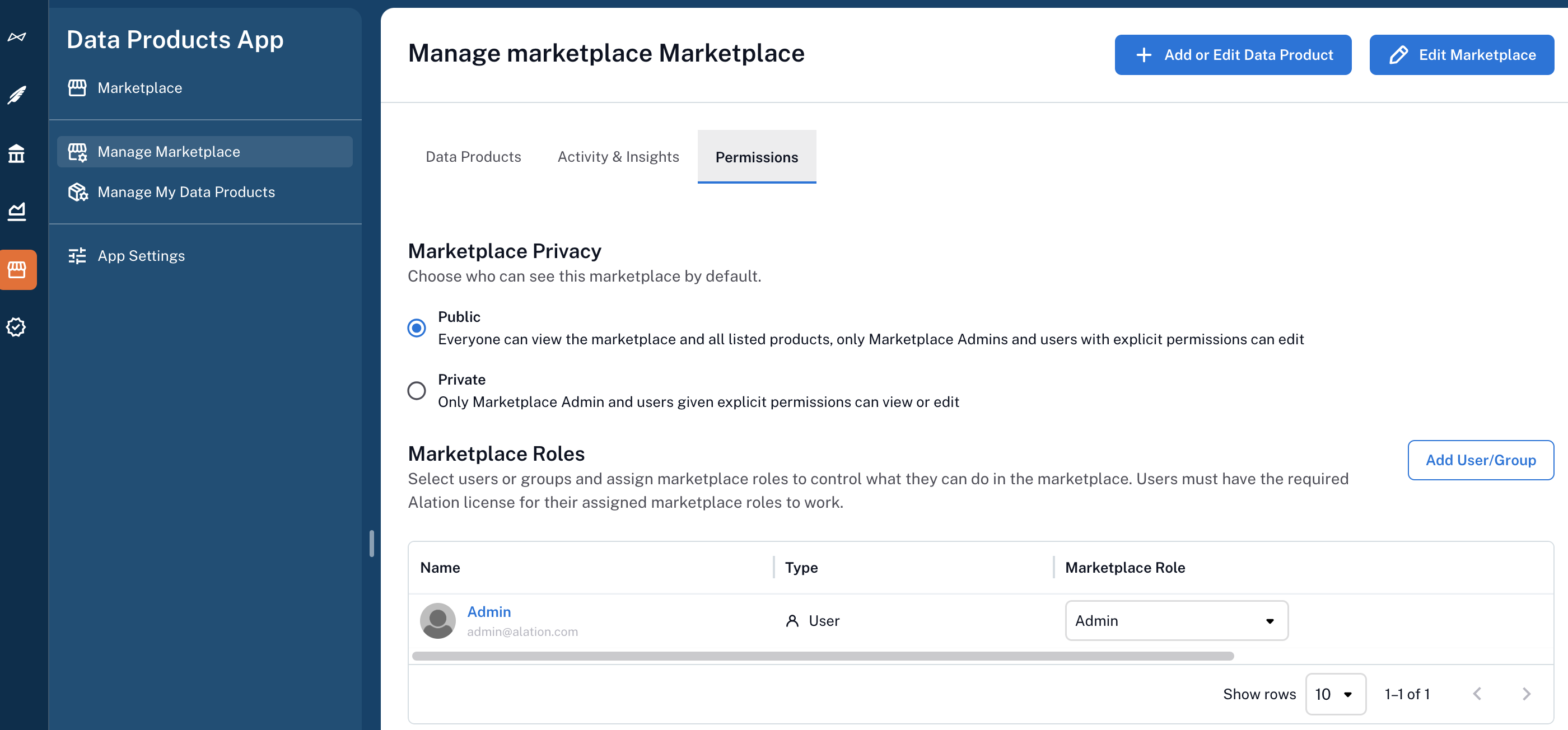
Set Marketplace Privacy
Under the Marketplace Privacy section, choose who can see this Marketplace by default:
Public (default): Everyone can view the Marketplace and all listed data products. Only Marketplace Admins and users with explicit permissions can edit.
Private: Only Marketplace Admins and users given explicit permissions can view or edit.
A newly created Marketplace is Public by default, so all Alation users can browse the Marketplace and its listed data products as soon as it is created. To restrict access to users with explicit roles, switch the setting to Private.
Assign Marketplace Roles to Users and Groups
Marketplace roles determine what actions a user or group can perform within the Marketplace.
To assign a role:
Under the Permissions tab, locate the Marketplace Roles section.
Click Add User/Group.
In the Quick Search window, find and select a user or group. They’ll be added to the table with a default role of Viewer.
In the Marketplace Role column, click the dropdown next to the user or group and select the appropriate role. The selected role takes effect immediately after it is assigned.
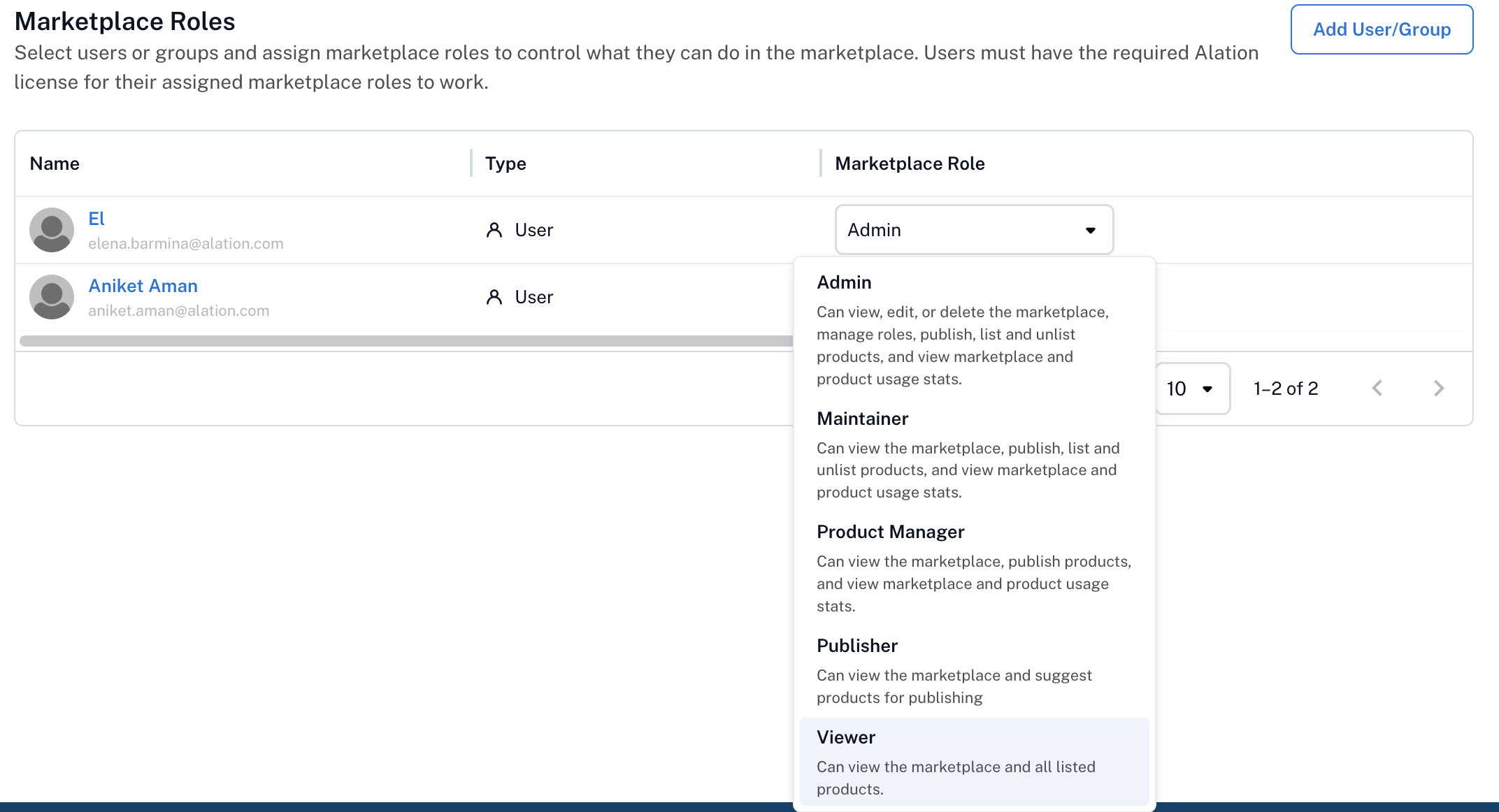
Available Marketplace Roles
Marketplace Role |
Permissions |
Default for |
License Required |
|---|---|---|---|
Marketplace Admin |
View, edit, and delete the Marketplace, configure settings, assign the Marketplace roles, and list and un-list data products. Sees the Manage Marketplace menu item in the left-side navigation. |
Creator of the marketplace |
Creator |
Marketplace Maintainer |
List and un-list data products, view Marketplace activity and usage statistics. |
None |
Creator |
Marketplace Viewer |
View the Marketplace, search for and view the data products listed on the Marketplace. |
Everyone (when Marketplace is Public) |
Viewer |
Assign Data Product Roles
Locate Data Product Access Settings
To manage data product roles, you must either:
Be the creator of the data product or
Have admin-level permissions at a higher level in the access hierarchy.
To locate and manage data product permissions:
In the left-side navigation, click the Data Products App icon. Expand the navigation panel if it’s collapsed.
Select one of the following based on your access level:
My Data Products: To manage data products you created or have edit access to.
Manage Marketplace: To manage data products if you have Marketplace Admin access.
In the Data Products table, find the data product you want to update. In the rightmost column for this data product, click the three-dot menu and select Manage Permissions. The screenshot below shows how to access Manage Permissions from My Data Products page.
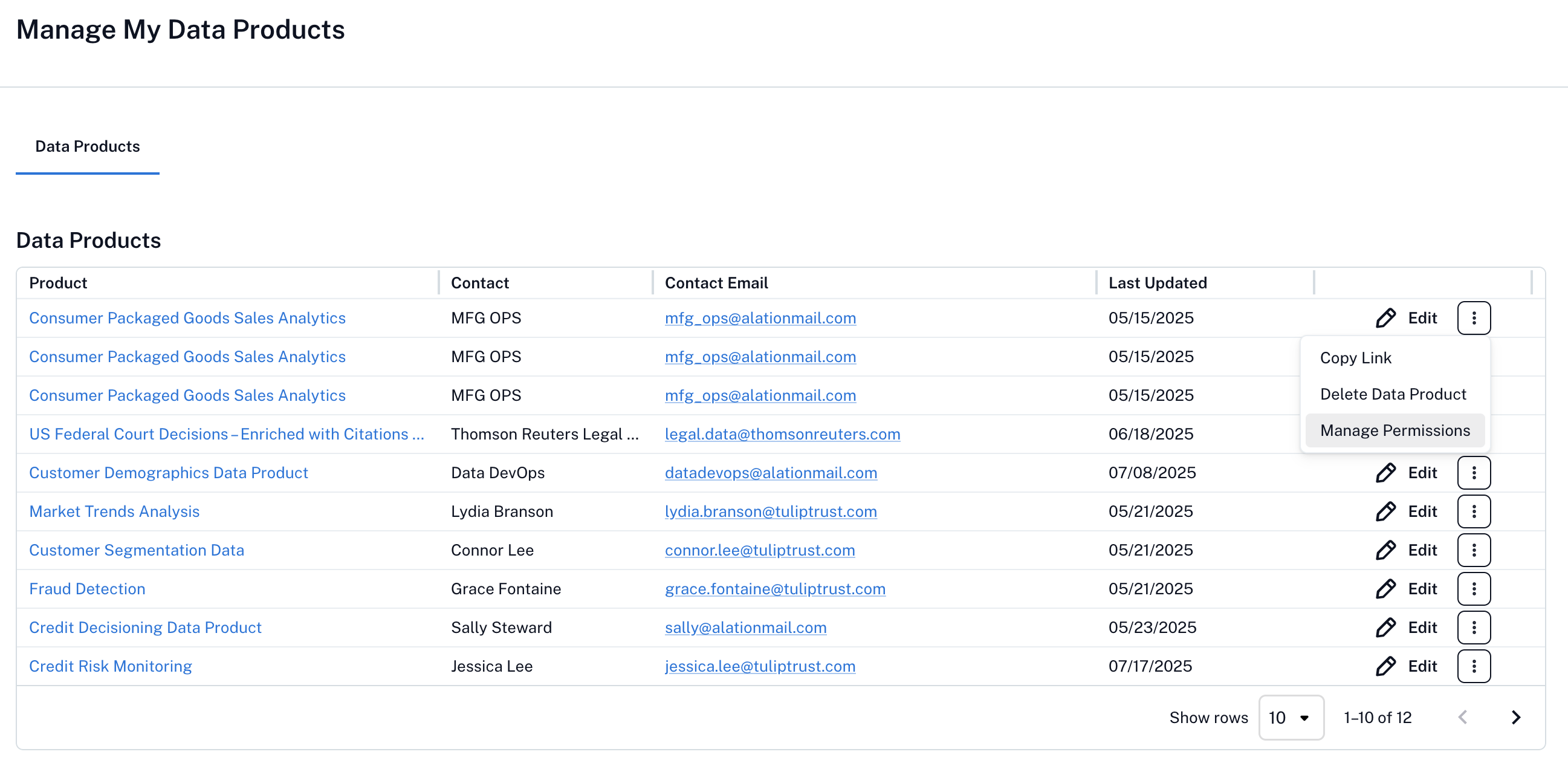
Configure Data Product Visibility
In the Manage Product Permissions dialog, you can choose how broadly the data product is visible:
Public (default): Anyone with a link can view the data product. Only the creator and users with assigned roles can edit.
Private: Only the creator and users with assigned roles can view and edit. However, once listed in the Marketplace, anyone with Marketplace access can view the product.
Private (Restricted): Only the creator and users with assigned roles can view the data product, even after it is listed in the Marketplace. This mode provides the strictest access control. Data products with this setting display a lock icon to indicate restricted access.
If your preferred access is Everyone can view; only Admins can edit, leave the setting as Public. If you need strict access control where only explicitly assigned users can view the product regardless of Marketplace listing, use Private (Restricted).
Data Product Access by Role
A data product’s visibility settings determine who can view it and who can manage it. The following table summarizes access for common combinations of Alation role, Marketplace role, and data product role.
The table lists the following access levels:
Full Access — Can view the data product, edit its content, and manage its permissions.
View Access — Can view the data product page only. Cannot edit content or manage permissions.
No Access — Cannot view, edit, or manage the data product.
User Role |
Public |
Private |
Private (Restricted) |
|---|---|---|---|
Data Product Admin (assigned per data product) |
Full Access |
Full Access |
Full Access |
Alation Server Admin |
Full Access |
Full Access |
Full Access |
Alation Catalog Admin, Source Admin, Composer, or Steward (no Marketplace role) |
View Access |
No Access |
No Access |
Marketplace Viewer |
View Access |
View Access ** |
No Access |
Data Product Viewer (assigned per data product) |
View Access |
View Access |
View Access |
Alation Explorer or Viewer (no Marketplace role) |
View Access |
No Access |
No Access |
** Marketplace Viewers can view Private data products listed in the Marketplace today. The legacy Private privacy mode is being migrated to Private (Restricted) in a future release. After the migration, only users with an explicit Data Product Admin or Data Product Viewer role on a product can view it, even when it is listed in the Marketplace. To preserve access for specific users when the migration runs, grant them one of these roles on each affected product.
Note
Marketplace Admin and Marketplace Maintainer roles control Marketplace-level actions only (such as listing or unlisting data products, configuring Marketplace settings). To grant a user access to a specific data product, assign them a Data Product Admin or Data Product Viewer role on that product.
Note
If a user holds multiple roles for a data product, the role that grants the highest level of access takes precedence. For example, a Marketplace Viewer who is also assigned Data Product Admin for a specific product has full access to that product.
Assign Data Product Roles to Users and Groups
Product-level roles are assigned individually per data product, regardless of Marketplace roles.
To assign data product roles:
Under the Product Roles section of the Manage Permissions dialog, click Add User/Group.
In the Quick Search window, search for a user or group. Click the name to add it to the Roles table. By default, all added users and groups are assigned the Viewer role.
In the Data Product Role column, use the dropdown to select the appropriate role.
Click Done. The selected role takes effect immediately.
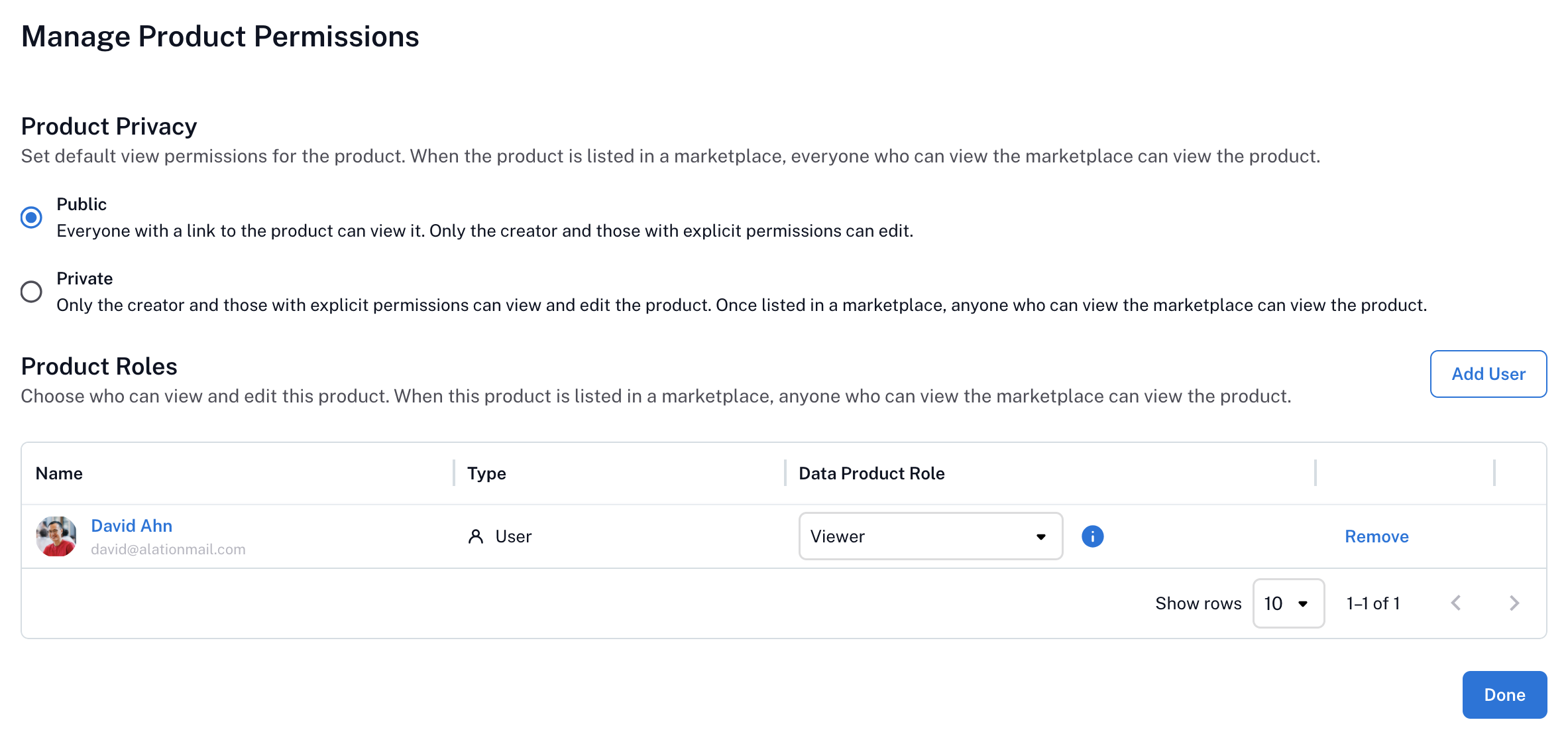
Available Data Product Roles
Marketplace Role |
Permissions |
Default for |
License Required |
|---|---|---|---|
Data Product Admin |
View, edit, and delete data products, manage data product permissions, access data product usage information. |
Creator of the product |
Creator |
Data Product Viewer |
View the data product outside of the Marketplace and regardless of its Marketplace listing status. |
Everyone |
Viewer |
Important
For Public and Private data products, Marketplace visibility overrides product-level visibility. If a data product is listed in a Marketplace, any user with Marketplace Viewer access can view the product even if they don’t have product-level permissions.
Private (Restricted) data products are an exception: only users with explicit product-level permissions can view them, even when listed in the Marketplace.
Assign Data Products App Roles
Locate App-Level Access Settings
To manage Data Products App-level roles, you must be an Alation Server Admin.
Follow these steps:
In the left-side navigation, click the Data Products App icon. Expand the navigation panel if it’s collapsed.
Select Manage App. This opens the Data Products App settings page.
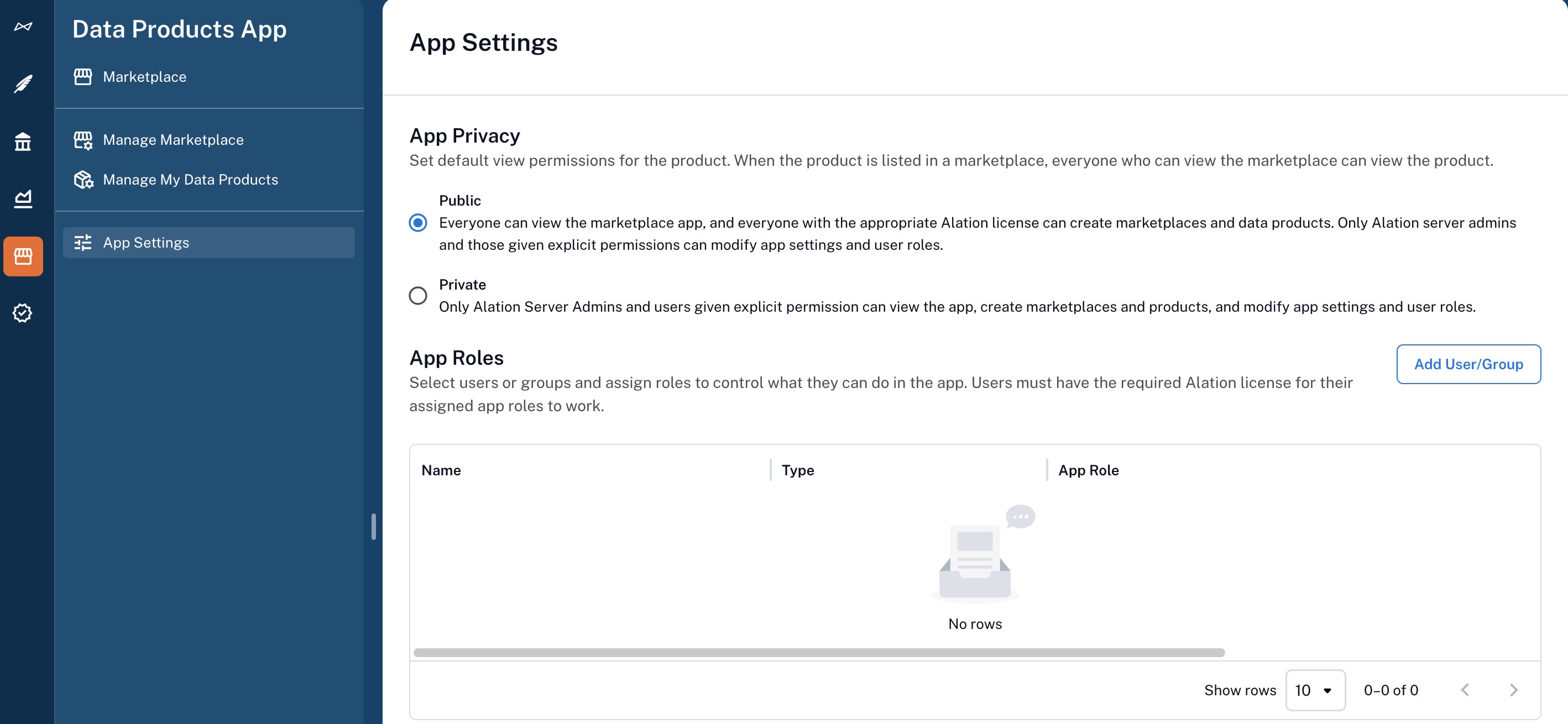
Click the Permissions tab. This tab allows you to:
Set App Privacy
Under the App Privacy section, choose whether access to the Data Products App is Public or Private:
Public (default): Everyone can view the Data Products App, and everyone with an appropriate Alation license can create Marketplaces and data products. Only Server Admins and users with App Admin permissions can modify App settings and user roles.
Private: Only Server Admins and users given explicit permission can view the App, create Marketplaces and data products, and modify App settings and user roles.
A newly enabled Data Products App is Public by default, and all Alation users with an appropriate license are automatically granted the App User role. To restrict access to Server Admins and explicitly assigned users only, switch the setting to Private. Only a Server Admin or a user with the App Admin role can switch the Data Products App between Public and Private.
Assign Data Product App-Level Roles
App-level roles control what users can do across the entire Data Products App.
To assign an App-level role:
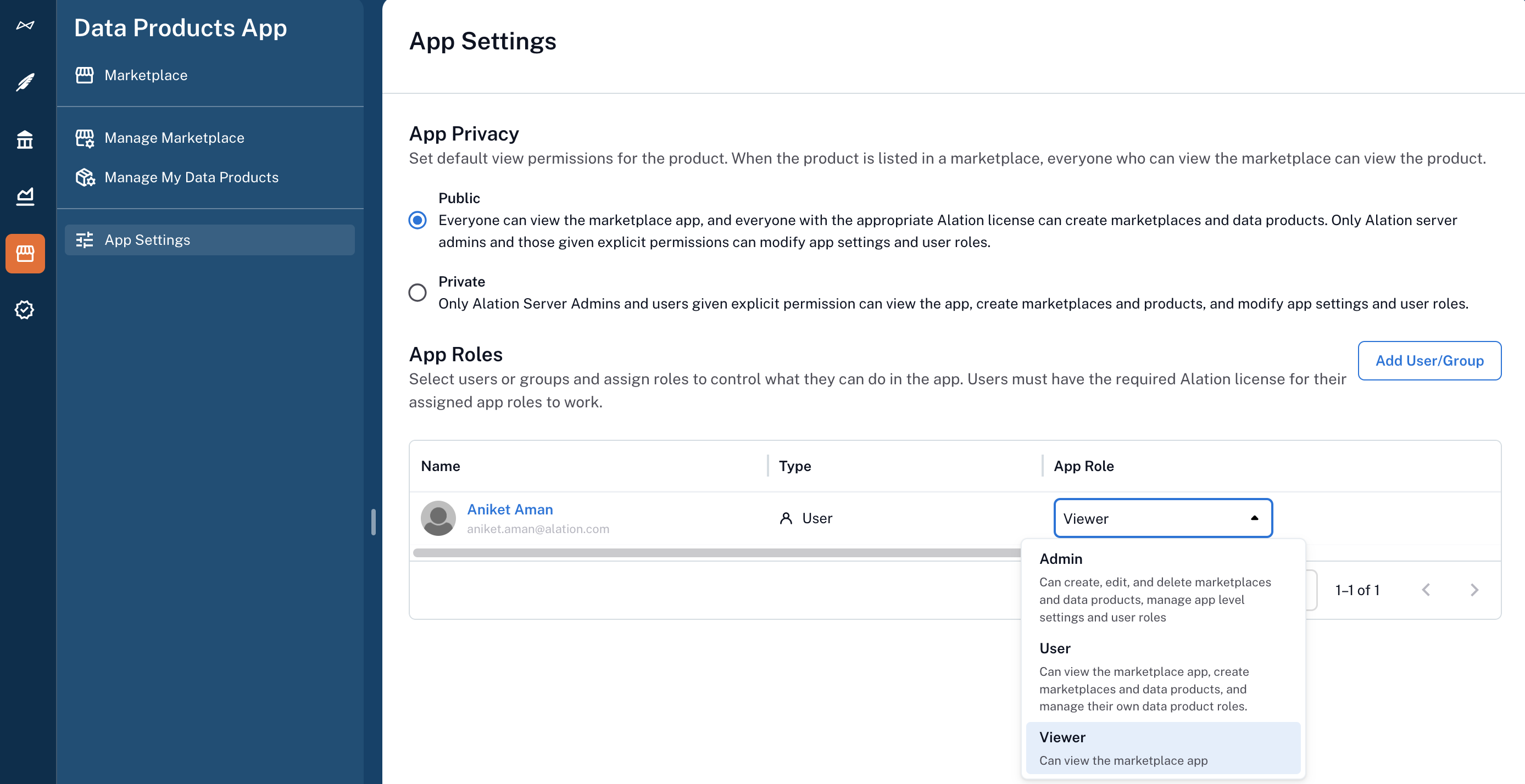
Under the App Roles section, click Add User/Group.
In the Quick Search window, find and select a user or group. The user or group is added to the Roles table with a default role of Viewer.
In the App Role column, click the dropdown and select the desired role. The selected role is applied immediately.
Available App-Level Roles
Role |
Permissions |
Default For |
License Required |
|---|---|---|---|
App Admin |
Create, edit, and delete the Marketplace and data products, manage the Data Products App settings, and manage the App permissions. |
The Server Admin who first clicks Get started on the Marketplace setup flow is granted this role explicitly. Server Admins themselves have App Admin-equivalent capabilities through a system-level override and do not need this role assigned. |
Creator |
App User |
View the Data Products App, set up the Marketplace and data products, and manage your own data product permissions and data products. |
Everyone (when the Data Products App is Public) |
Creator |
App Viewer |
View the Data Products App’s content (read-only access) |
None by default. A Server Admin or App Admin must grant this role. |
Viewer |
Remove Roles from Users and Groups
To remove a role at any level—App, Marketplace, or data product:
Open the appropriate Access Settings page:
In the Roles table, locate the user or group you want to remove.
In the rightmost column for this user or group, click Remove. If prompted, confirm the removal. The selected user or group will immediately lose access based on that role.
Data Product App Roles Hierarchy Across Levels
The Data Products App uses a three-level access model: App, Marketplace, and data product. These levels interact hierarchically:
App-level Admins have the highest authority and can take ownership or reassign any resource if needed.
Marketplace-level roles control what users can do within a specific Marketplace.
Product-level roles are assigned individually and operate independently from Marketplace roles.
Best Practices for Assigning Data Product Roles
Determine who will manage the Data Products App. Assign these responsibilities to Server Admins, as they can access all levels and reassign ownership when necessary.
Decide who will manage the Marketplace. Marketplace Admins should be responsible for:
Managing Marketplace settings
Approving product listings
Assigning roles within the Marketplace
Assign product-level permissions to data product owners. Each owner can decide who can view or edit their data products.
Understanding Access Issues
Because users can hold different roles at multiple levels, access is determined by the combined effect of their:
Alation Role (Server Admin, Catalog Admin, Viewer, etc.)
App Role (App Admin, App User, etc.)
Marketplace Role (Marketplace Admin, Marketplace Maintainer, etc.)
Data Product Role (Data Product Admin, Data Product Viewer)
If a user is missing access to certain features or user interface elements, check all four role types to troubleshoot the issue.
Some role combinations may not be valid. For example:
A user with a Viewer Alation license cannot function as a Data Products App Admin. The App Admin role requires a Creator license. Server Admins are not assigned this role; they have App Admin-equivalent capabilities through a system-level override.