
Suggest Improvements
Alation Cloud Service Applies to Alation Cloud Service instances of Alation
Overview
Suggest Improvements refines a data product after you complete advanced configuration. It evaluates the data product against its configured evaluation questions and proposes updates to better align the structure, metadata, title, and description with those evaluation results.
Data Product Admins have the ability to suggest improvements to a data product.
When you request improvements, the system triggers a background revision job. The job uses a system prompt to iteratively attempt improvements that yield better evaluation run results. The result is a proposed update to the data product specification in YAML format.
Suggested improvements can modify:
Data product title
Data product description
Metadata for included data assets
The YAML specification structure
If you accept the suggestions, the data product is modified in place. The version of the data product remains the same.
If you reject the suggestions, they are discarded. You can request another revision run at any time.
Use Suggest Improvements at the Right Stage
Use Suggest Improvements after you:
Configure core data product properties.
Configure advanced properties, including evaluation questions.
Complete at least one evaluation run.
Note
You can run Suggest Improvements before listing the data product in the Marketplace. However, be aware that applying suggested changes modifies the data product specification.
The Suggest Improvements process uses your previous evaluation run and the configured evaluation questions. It analyzes whether the content and structure of the data product reflect those evaluation questions and proposes content adjustments to improve alignment.
Request an Improvement
You can request suggested improvements from the My Data Products page.
Expand the left navigation panel.
Click My Data Products. The My Data Products page lists all data products for which you have explicit permissions to view and manage.
In the Data Products table, locate the data product you want to refine.
In the rightmost column of the row, click the three dots action menu.
Select Suggest Improvements. A short guide opens explaining what will happen when you request improvements.
Click Start. This action triggers a background data product revision job.
Understand the Background Process
The revision job runs internally in the background.
It uses your previous evaluation run.
It iteratively attempts to improve the data product so that it better reflects the evaluation questions.
The duration depends on the number of evaluation questions.
The process can take up to two hours.
Monitor Status
While the process runs:
The data product shows a Refining status in the Data Products table.
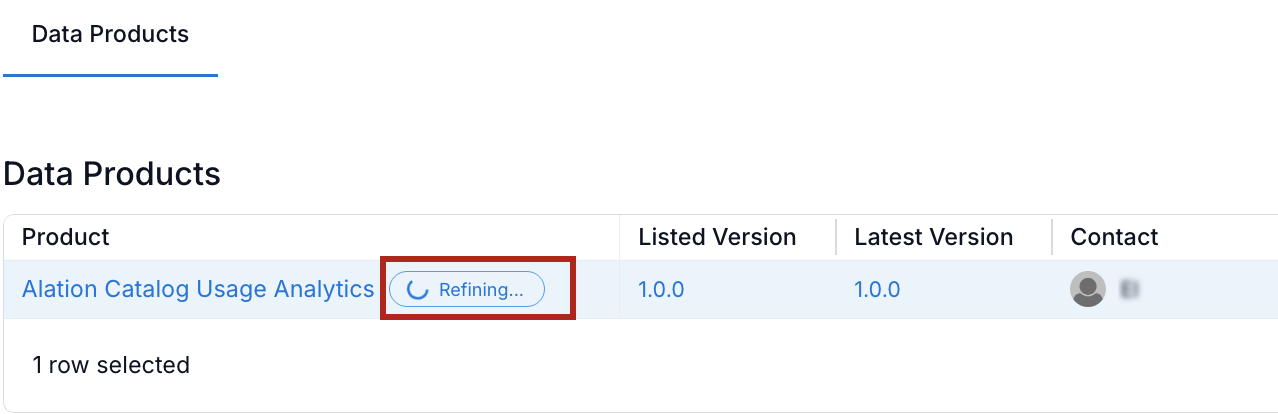
The label indicates that an improvement process is currently running.
When the process completes:
The status icon changes to See Improvements.

You can then review the suggested changes.
Review Suggested Improvements
When the revision job completes, review the proposed updates and decide whether to apply or dismiss them.
Open the Suggestion View from the Data Products Table
In the Data Products table, locate the data product.
Click the See Improvements icon. The suggestion view will open
Open the Suggestion View from the Data Product Properties Page
In the Data Products table, click the name of the data product to open its properties page.
Locate the Improve Accuracy section.
Click Review. The Review button opens the same suggestion view as the See Improvements icon.
Understand the Suggestion Format
The suggested improvements are displayed:
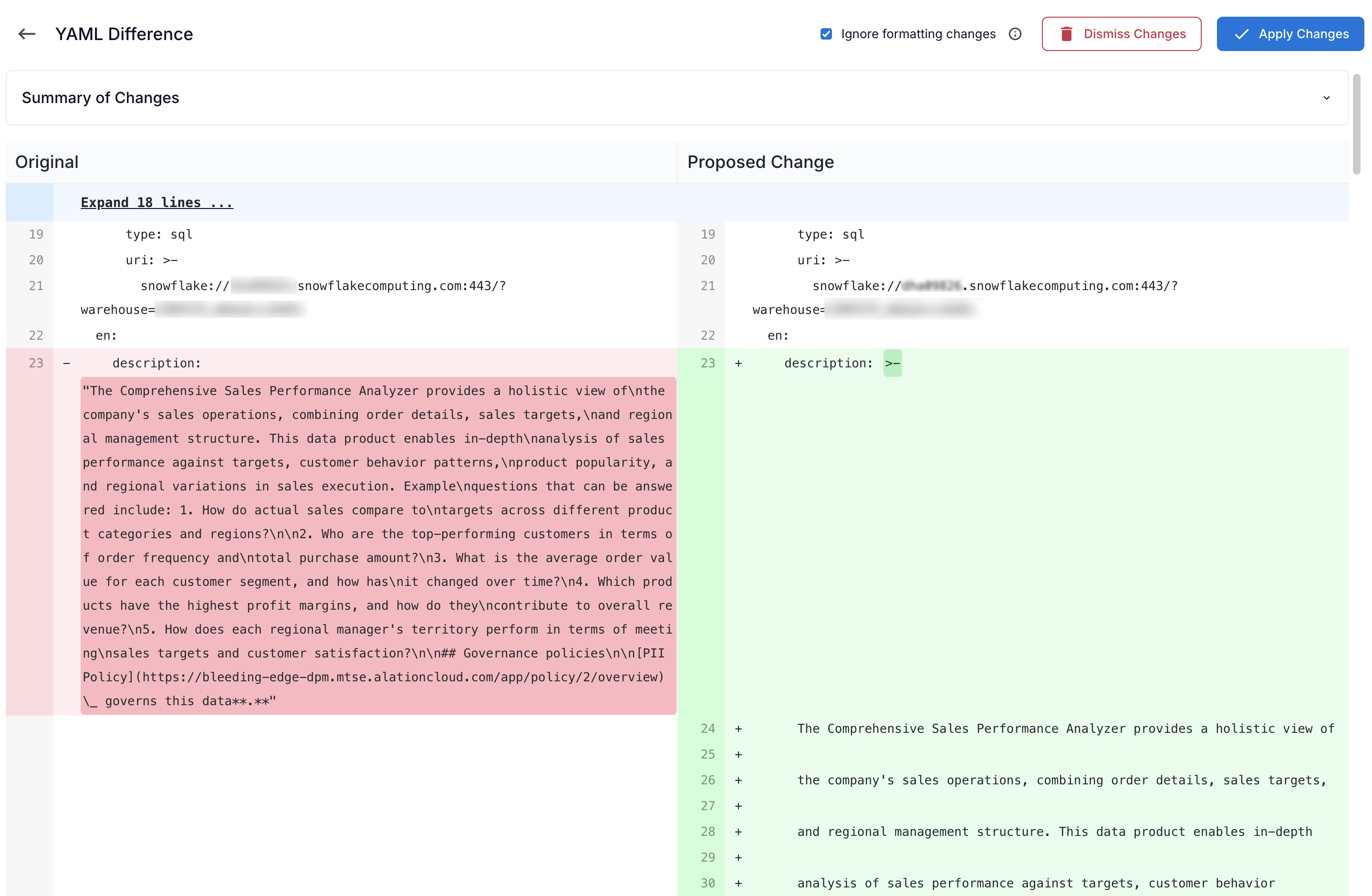
In YAML format, in a side-by-side diff view.
The old version appears on the left. The proposed version appears on the right.
Suggested changes are highlighted in green.
The diff reflects updates to the data product specification, including structure, metadata, title, and description.
Apply Changes
Apply the proposed changes when they improve alignment with your evaluation questions and intended purpose:
In the suggestion view, click Apply on the top right of the view. As a result:
The data product specification updated to the proposed content.
The data product version remains the same.
Dismiss Changes
In the suggestion view, click Dismiss. As a result:
Suggested changes are discarded.
No updates are applied to the data product.
The See Suggestions icon and the Improve Accuracy section disappear.
If no improvements were generated:
Only the Dismiss option is available, because there is nothing to apply.
After dismissing, you can request improvements again at any time to trigger a new revision run.
Resolve Improvement Failures
In some cases, the revision job may fail. If a failure occurs, a failure message appears in the Data Products table.
To investigate and retry:
Click the failure message.
Review the explanation provided in the dialog.
Retry the improvement process from the dialog.
After retrying:
The status returns to Refining.
The system starts a new background revision job.
Wait for the process to complete and monitor the status in the table.