
Manage Chat Feedback
Alation Cloud Service Applies to Alation Cloud Service instances of Alation
As a Data Product Admin, you can review and manage all feedback that users submit about their interactions with a chat-enabled data product you manage. This feedback helps you understand how well the chat performs and where the data product may need improvement. Server Admins can also open this feedback from the data product page, even without a data product role.
Note
Chat users can rate individual chat interactions by selecting the thumbs-up or thumbs-down icon below a chat response. When submitting a rating, they can also include an optional written comment that explains their feedback. For details on how users submit chat feedback, see Provide Feedback on the Data Product Chat.
In this topic:
Access the Feedback Tab
Feedback appears on the Feedback tab of the data product management page.
Open Data Products App > Manage My Data Products.
Locate the data product you want to review.
In the rightmost column, click the three-dots icon.
Select Manage Data Product. The data product management page opens.
Click on the Feedback tab.
The Feedback tab displays the following sub-tabs:
Data product feedback: Feedback that users submit about the data product.
Chat feedback: Ratings and comments that users provide to individual chat responses.
All chat conversations: All saved chat conversations for the data product.
Review Data Product Feedback
On the Data product feedback sub-tab, review feedback that users submit about the data product. Each entry shows its Type, the Feedback, the User, and the Created date. Click Filter to narrow the list.
Review Chat Feedback
On the Chat feedback sub-tab, review the ratings that users provide to individual chat responses. Each entry shows the Feedback (positive or negative), the Message, the User, and the Created date. Use the filter to view Positive or Negative messages separately.
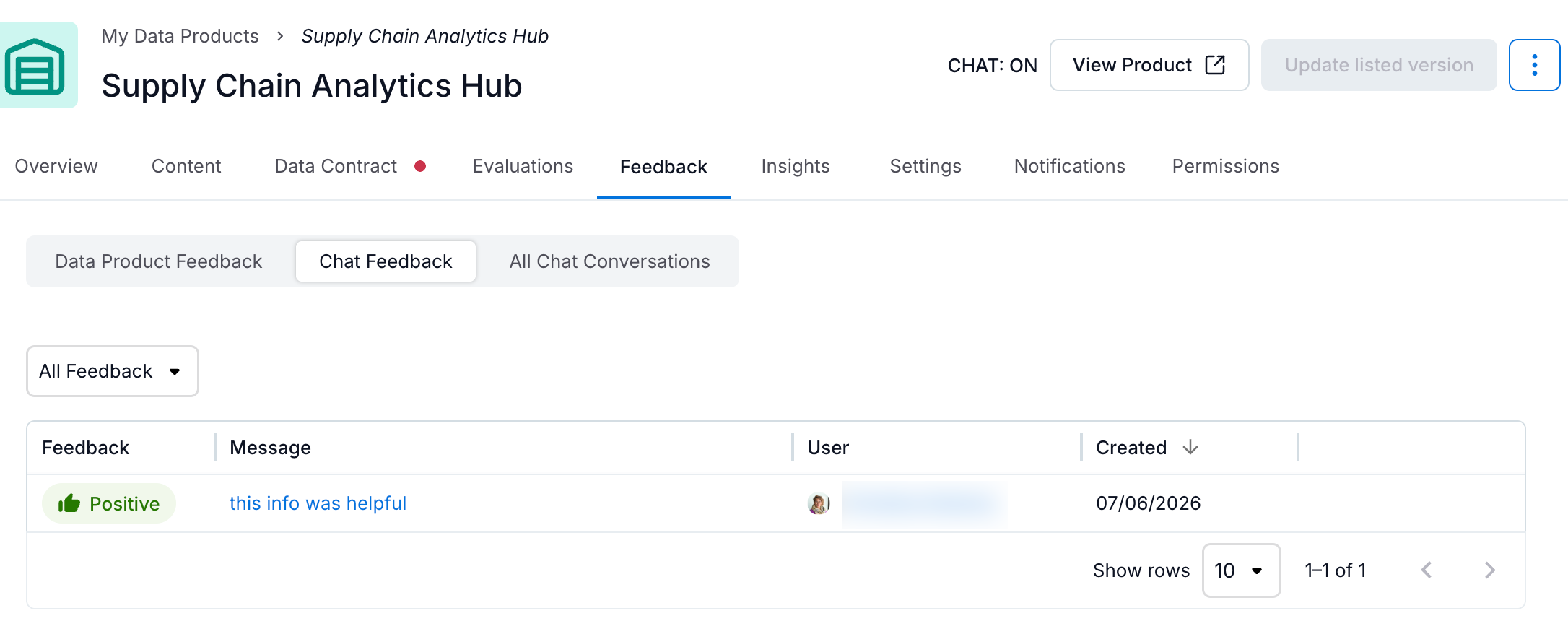
To inspect an individual piece of feedback:
If necessary, sort the feedback by the Created column to display the most recent feedback on top.
Click the entry in the Message column.
The conversation opens, displaying the user’s feedback details and the specific chat response that triggered the feedback.
To view the entire conversation that led to the feedback, click View full conversation.

How you respond to feedback depends on the issue and your goals for the data product. Common follow-up actions include:
Update the data product description to set better expectations, since this is what users see first when interacting with chat. Clearly describe how the data product is intended to be used, including common or recommended scenarios.
Add or improve metric metadata so chat responses have clearer and more accurate context.
Use the Evaluate feature to test your data product more and ensure you’ve tested it on the main queries.
Review Chat Conversations
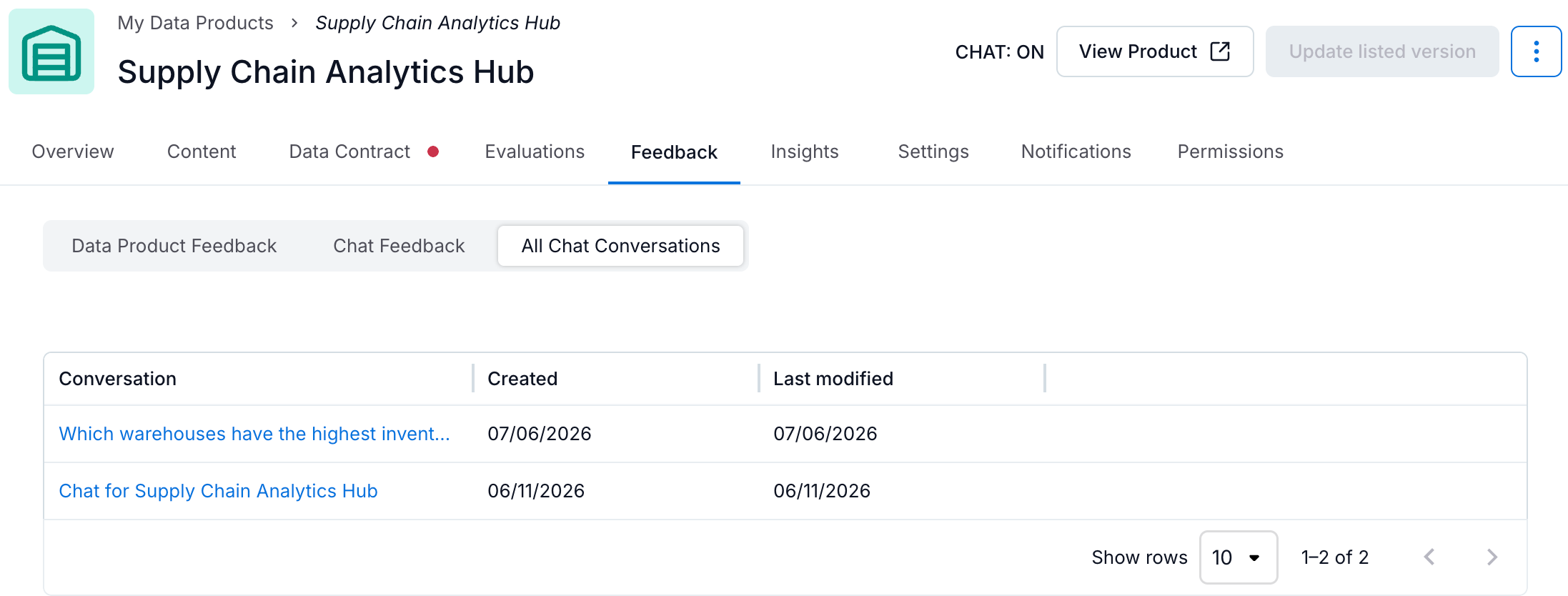
On the All chat conversations sub-tab, review all saved chat conversations for the data product. Each row shows the Conversation, its Created date, and its Last modified date.
Click a conversation to open it. The conversation view displays the messages in that conversation and the feedback submitted for that conversation. If the conversation has no messages, it shows There are no messages in this conversation. Click All Conversations to return to the list.
Note
Only Data Product Admins and Server Admins users can review saved conversations.