
Configure Documentation for a Data Product
Alation Cloud Service Applies to Alation Cloud Service instances of Alation
You can link Document Hubs content to a data product so that the Data Product Chat can draw on your organization’s authoritative definitions, formulas, and business rules when answering questions. For information on the chat itself, see Configure Chat with Data Product.
This supplemental context is called the knowledge layer for a data product. You configure it on the Documentation subtab of the Content tab.
In this topic:
How the Data Product Chat Uses Documentation
Linking a document or folder to a data product tells the chat that the content is available. The chat does not load the full contents of every linked document into every answer. Instead, for each user question, the chat evaluates whether documentation is likely to help, then retrieves only the relevant content.
The chat uses three retrieval strategies together:
Specific documents: content from the documents you explicitly link is available to the chat.
Folders: the chat searches within the folders you link and returns the most relevant documents for the question. Documents added to a linked folder later are included automatically without reconfiguration.
Catalog-wide: when Include catalog documentation is enabled, the chat can also search across Document Hubs content the user has permission to read, beyond what’s explicitly linked to the data product.
Because retrieval is scoped and permission-aware, each user sees answers that respect their existing Document Hubs permissions. A user who cannot read a document in the catalog will not receive its contents through the chat.
Prerequisites
The data product must exist and you must have permission to edit it.
The documents and folders you want to link must already exist in Document Hubs.
To benefit from this configuration at runtime, the data product must have Chat configured and enabled. See Configure Chat with Data Product.
Configure Documentation on an Existing Data Product
To configure documentation on an existing data product:
Open the Data Products App and select My Data Products.
Click the name of the data product to open its management page.
Select the Content tab.
Select the Documentation subtab.
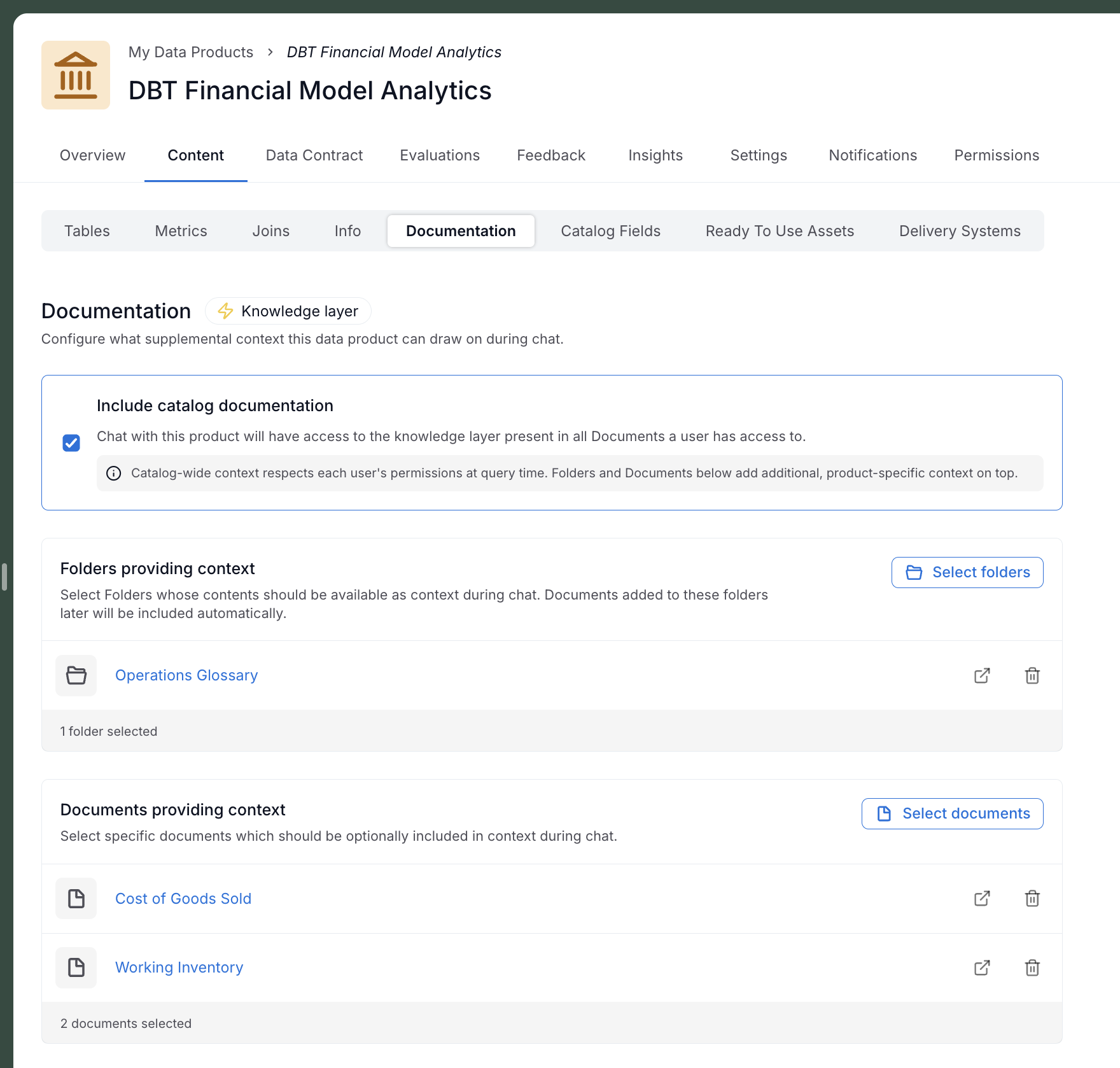
The Documentation form opens, showing the current knowledge layer configuration for the data product. The following screenshot shows the subtab with catalog documentation enabled, two folders linked, and one document linked.
Optionally, select or clear Include catalog documentation.
When selected, the chat can draw on any document in Document Hubs that the user has permission to read. When cleared, the chat is limited to the folders and documents you link below.
Under Folders providing context, click Select folders to add folders whose documents should be available to the chat.
Any document placed in a linked folder later is included automatically.
Under Documents providing context, click Select documents to add individual documents that should be available to the chat.
Click Save changes.
A confirmation appears: Documentation settings saved.
To discard unsaved edits, click Cancel.
Note
If a linked folder or document is later deleted, or if the current user loses access to it, the entry is shown as unavailable in the list. Remove the entry and click Save changes to clean up the configuration.
Guidance on Folders, Documents, and Catalog-Wide Context
Each option serves a different purpose. Combine them to match how your organization curates knowledge.
Option |
When to use it |
|---|---|
Specific documents |
Use for content you want the chat to treat as authoritative for this data product, such as a metric definition, a currency-conversion rule, or a geography alias list. Linking a document ensures it is always considered for relevant questions. |
Folders |
Use for collections that evolve over time, such as a glossary or a playbook folder. Linking the folder once keeps the chat current as your team adds, updates, or retires documents inside it. |
Include catalog documentation |
Use when the data product should benefit from broad organizational context beyond what you curate. Results still respect each user’s Document Hubs permissions at query time. |
Tip
Start narrow and expand as needed. A small set of well-chosen documents and folders usually produces more consistent chat answers than broad catalog-wide search alone.
Configure Documentation in YAML
If you manage data products in YAML, you can set the knowledge layer through the product.documentation block. The form and the YAML are equivalent: changes saved in either place update the same underlying configuration.
The following example links two folders, one document, and enables catalog-wide search:
product:
  productId: finance:arr_sales_churn
  version: 1.0.0
  documentation:
    includeCatalogDocumentation: true
    folders:
      - id: 10704
        name: Finance Glossary
      - id: 10702
        name: Metric Definitions
    documents:
      - id: 4213
        name: ARR Calculation Rules
The fields are:
Field |
Required |
Description |
|---|---|---|
|
Optional |
List of catalog document references. Each entry must include an |
|
Optional |
List of catalog folder references. Documents contained in a linked folder are included automatically, including documents added to the folder later. Each entry must include an |
|
Optional |
Boolean. When |
See Create Data Products Using YAML for the full YAML workflow and the field reference.