
Configure Metadata Extraction
Alation Cloud Service Applies to Alation Cloud Service instances of Alation
Customer Managed Applies to customer-managed instances of Alation
Enhanced Connector Enhanced connectors add extended capabilities and require a separate entitlement in addition to your Alation platform license.
To configure metadata extraction (MDE) for the MaxCompute data source in Alation, follow these steps:
Test Access and Fetch Projects
Before extracting metadata, test the connection to MaxCompute and fetch the available projects:
On the MaxCompute data source Settings page, go to the Metadata Extraction tab.
Under Step 1: Test Access and Fetch Schemas, click Run.
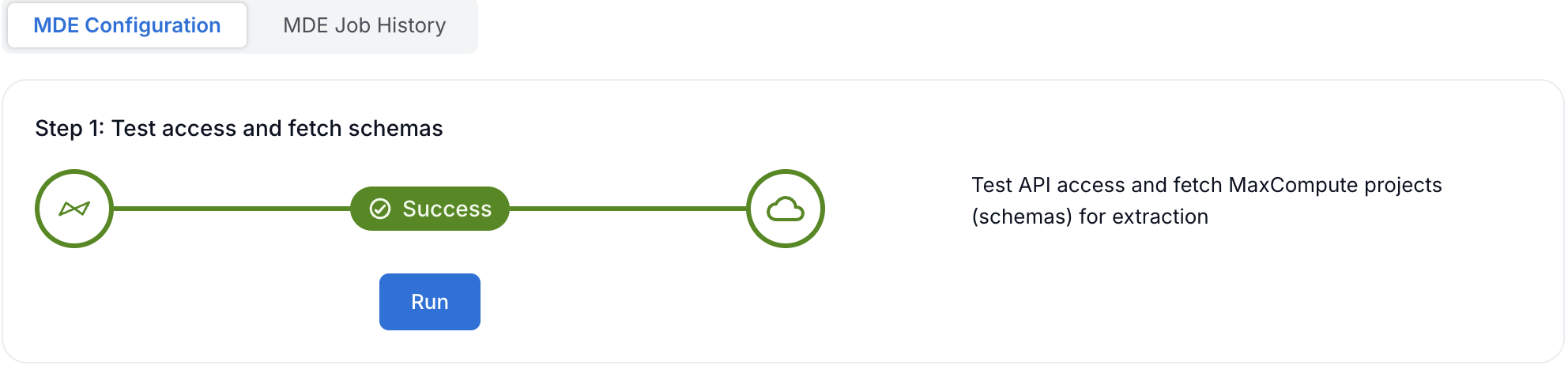
Alation tests the connection to MaxCompute and retrieves the list of available projects (schemas). If the connection succeeds, the status shows Success. If errors occur, review the error messages and verify your connection settings in General Settings.
Select Projects for Extraction
After successfully fetching projects, configure which projects to extract:
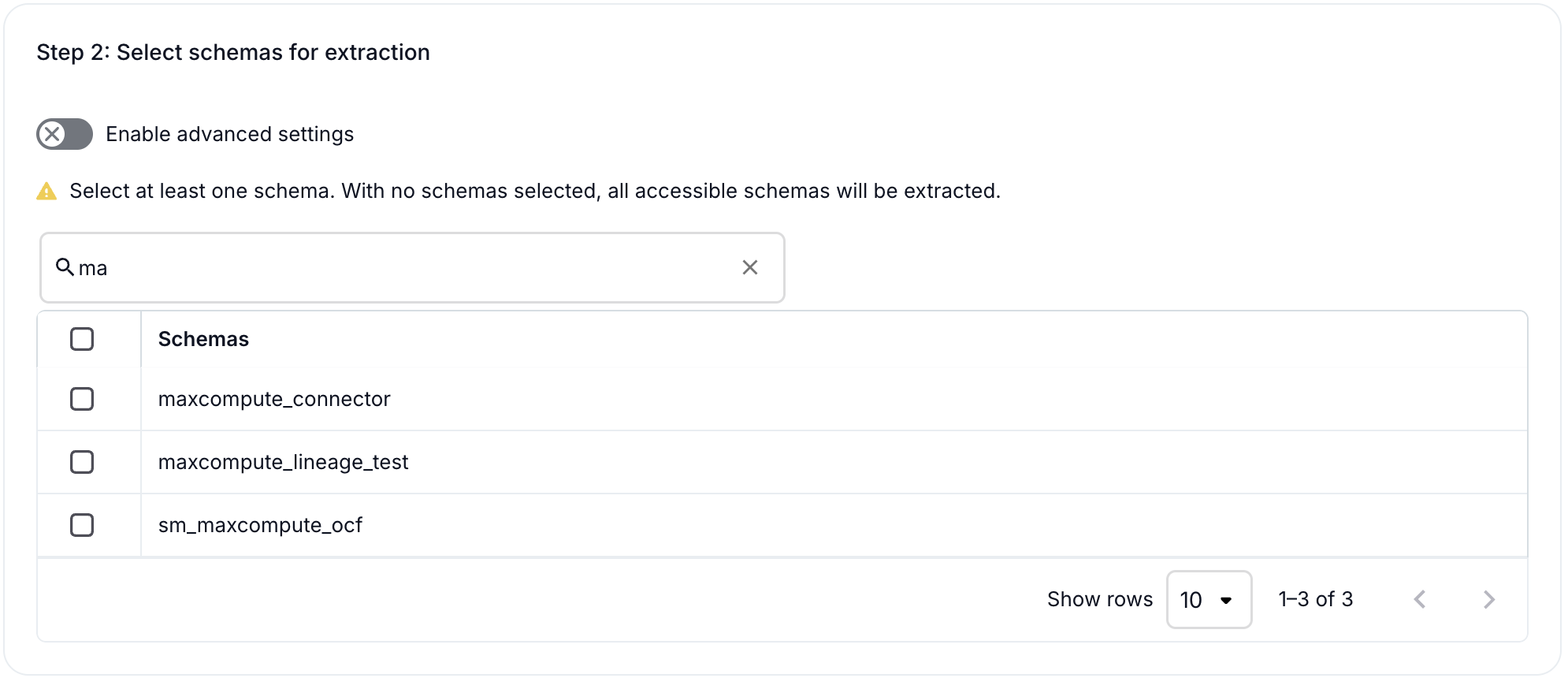
Under Step 2: Select schemas for extraction, you will see the list of available MaxCompute projects.
Select one or more projects by clicking the checkbox next to each project name.
Note
If you do not select projects, Alation extracts metadata from all accessible projects.
Use the Search by name field to filter projects if you have a large number of projects.
(Optional) Turn on the Enable advanced settings toggle to access additional filter options:
Filter Option
Description
Extract all except selected
Extract metadata from all projects except those selected.
Extract only selected
Extract metadata from only the selected projects.
(Optional) Check Keep the catalog synchronized with the current selection of schemas to remove previously extracted projects that are no longer selected.
Run Extraction
After configuring project selection, run the metadata extraction:
Under Step 3: Run extraction, click Run extraction to extract metadata from MaxCompute.

To enable automated metadata updates, under Automated and Manual Extraction, turn on Enable Automated Extraction and select the desired schedule (day and time). Metadata extraction will run automatically at the scheduled time.
Click Go to MDE Job History to view the status of the extraction job.
The extraction job will run and extract metadata based on your project selection. The status is logged in the MDE Job History tab.
Extracted Metadata
The connector extracts the following metadata objects:
MaxCompute Object |
Alation Object |
|---|---|
Project |
Schema |
Internal Table |
Table |
External Table |
Table |
View |
View (includes view SQL/DDL) |
Materialized View |
View (without view SQL) |
Column (including partition columns) |
Column |
User-Defined Function (UDF) |
Function |
Lineage Extraction
Lineage is extracted automatically during metadata extraction using the DataWorks Public API:
Table-Level Lineage: Extracted by default for all tables
Column-Level Lineage: Extracted if Enable Column Lineage is active in General Settings
Note
Column lineage extraction increases extraction time. Disable it for faster extraction if column-level lineage is not required.
Lineage relationships are displayed in the Alation lineage graph, including:
Source table to target table relationships
Column-to-column data flow
DataWorks ETL task information (displayed as Dataflow objects)
Script Details:
The connector also extracts script-related metadata from DataWorks ETL tasks:
Field |
Description |
|---|---|
Task |
The name of the DataWorks task. |
Status |
Task execution status (for example, Success, Failure). |
Trigger |
How the task was triggered (for example, Scheduler, Manual). |
Owner |
The owner of the task. |
TaskId |
Unique identifier for the task. |
StartedTime |
When the task started executing. |
FinishedTime |
When the task finished executing. |
Script Name |
The name of the script. |
Script Path |
The path to the script in the DataWorks workspace. |
Schedule |
Cron expression with timezone (for example, |
Recurrence |
Recurrence type (for example, Normal). |
SQL |
The actual MaxCompute SQL content of the script. |
These details are extracted using the DataWorks GetTaskInstance and ListNodes APIs and are displayed as part of the Dataflow objects in the lineage graph.
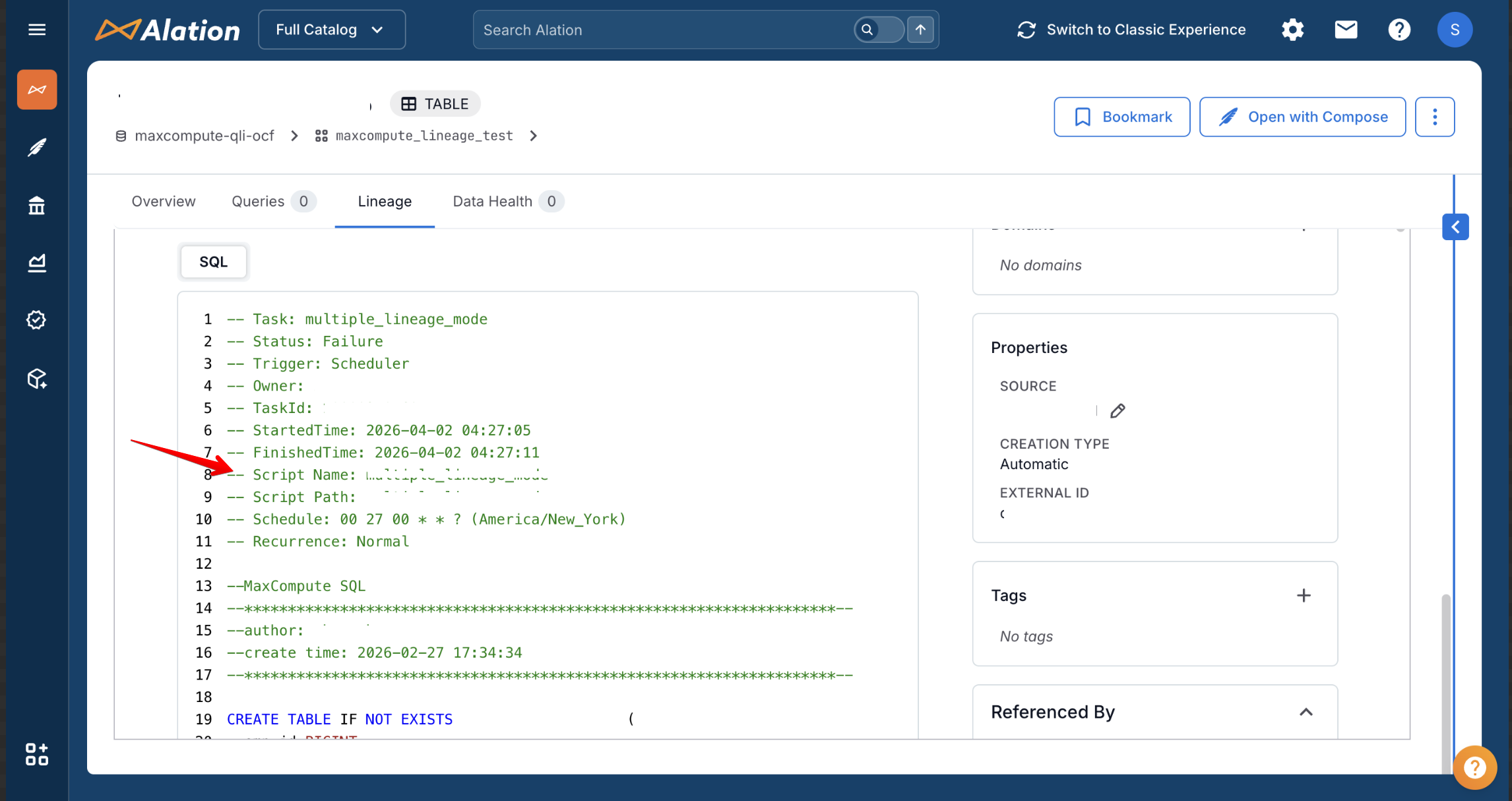
The script details include task name, status, trigger type, start/end times, schedule (cron expression), and the actual SQL content.
Performance Optimization
For large environments with many projects and tables:
Enable Parallel Processing: Turn on parallel API calls in General Settings for faster extraction.
Use Table Filters: Configure table name filters in General Settings to extract only relevant tables.
Keep Rate Limiting Enabled: If you experience API throttling errors, ensure rate limiting remains enabled in General Settings to cap API calls at 40 QPS.
Deactivate Enable Column Lineage in General Settings for faster extraction if column-level lineage is not required.