
Alation Search on Customer-Managed Instances
Customer Managed Applies to customer-managed instances of Alation
Alation’s Search feature accelerates data discovery by providing the ability to search among different object types and document content. Users can apply multi-dimensional filters to search results to further narrow down their findings.
Alation’s Search combines usage statistics with keyword search. It takes into account how often data objects are queried and catalog pages are visited to deliver relevant search results.
Note
Keyword Search refers to a method used to find information by matching words or phrases (keywords) that users type into the Search field against indexes of available content to retrieve relevant search results.
Access Search
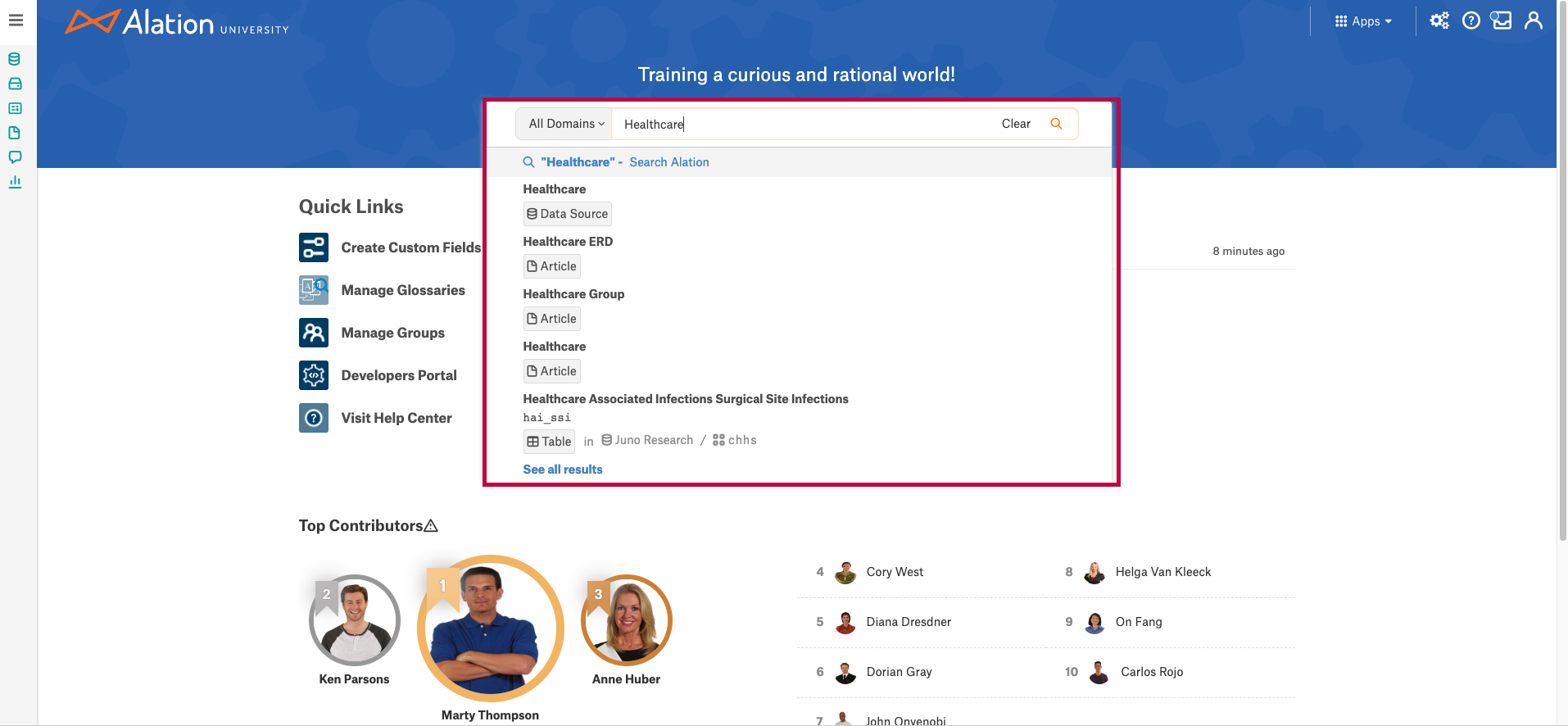
The Search box is located at the center of the Alation homepage and in the top navigation bar on all other pages. As you type, the search box dynamically displays the top matching results. Click a result to open the corresponding catalog page, or click Search Alation to open the Full-Page Search results page.
Misspelled keywords are auto-corrected.
Use quotation marks around a term for an exact match.
You can search for objects using data object subpaths, such as
<database name>.<schema name>or<table name>.<column name>.
From version 2021.3, as you type, the search box displays up to three keyword auto-complete suggestions along with matching catalog objects. Search Autocomplete is enabled by default. See Configure Alation Search on Customer-Managed Instances for information about enabling or disabling it.
The screenshot below shows the search box with auto-complete suggestions and matching catalog objects:
View Search Results
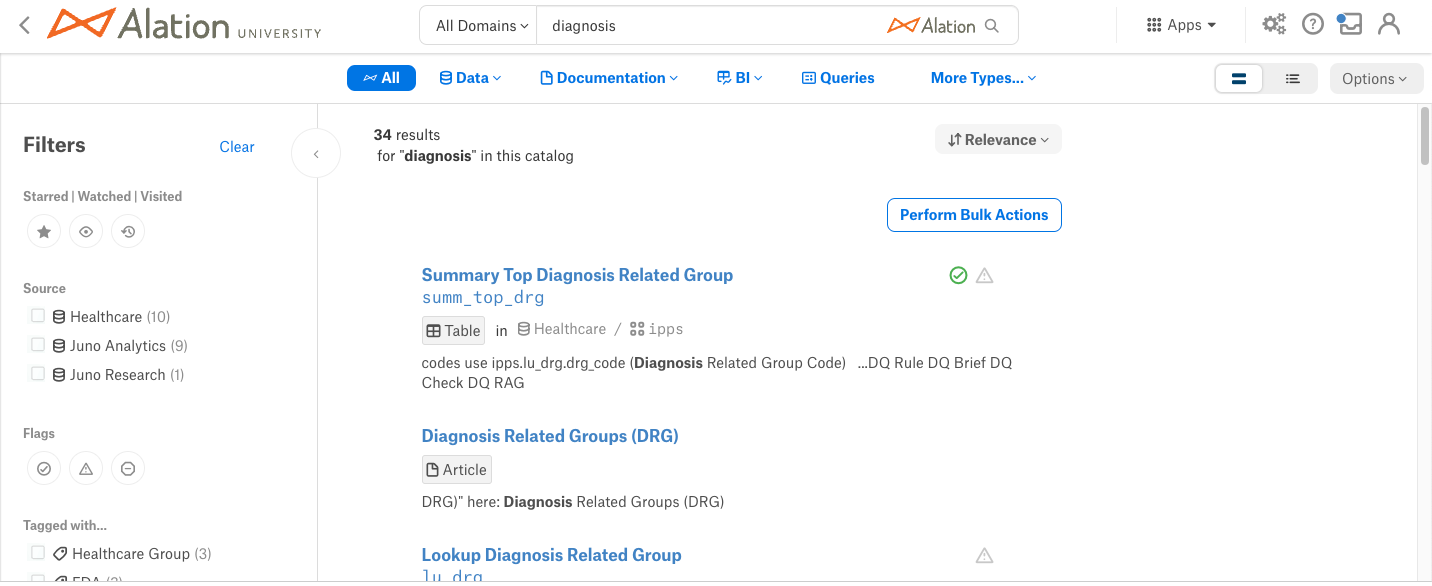
The Full-Page Search results page displays results sorted by relevance by default. Each result shows:
Object Title: The title and name of the object (if different from the title)
Object Type and Hierarchy: The object type and its path in the catalog hierarchy
Description: The object description; for queries, a portion of the SQL code may be shown
Trust Flags: Endorsement, Important Info, Warning, or Deprecation icons, where applicable
The Search results page displays the search results sorted by relevance such as text matches and popularity as shown below:
From version 2021.2, results can be displayed as a list or a table. To switch views, toggle the list/table icon at the top right of the results page. Click the Table View icon to view the results in the table view:
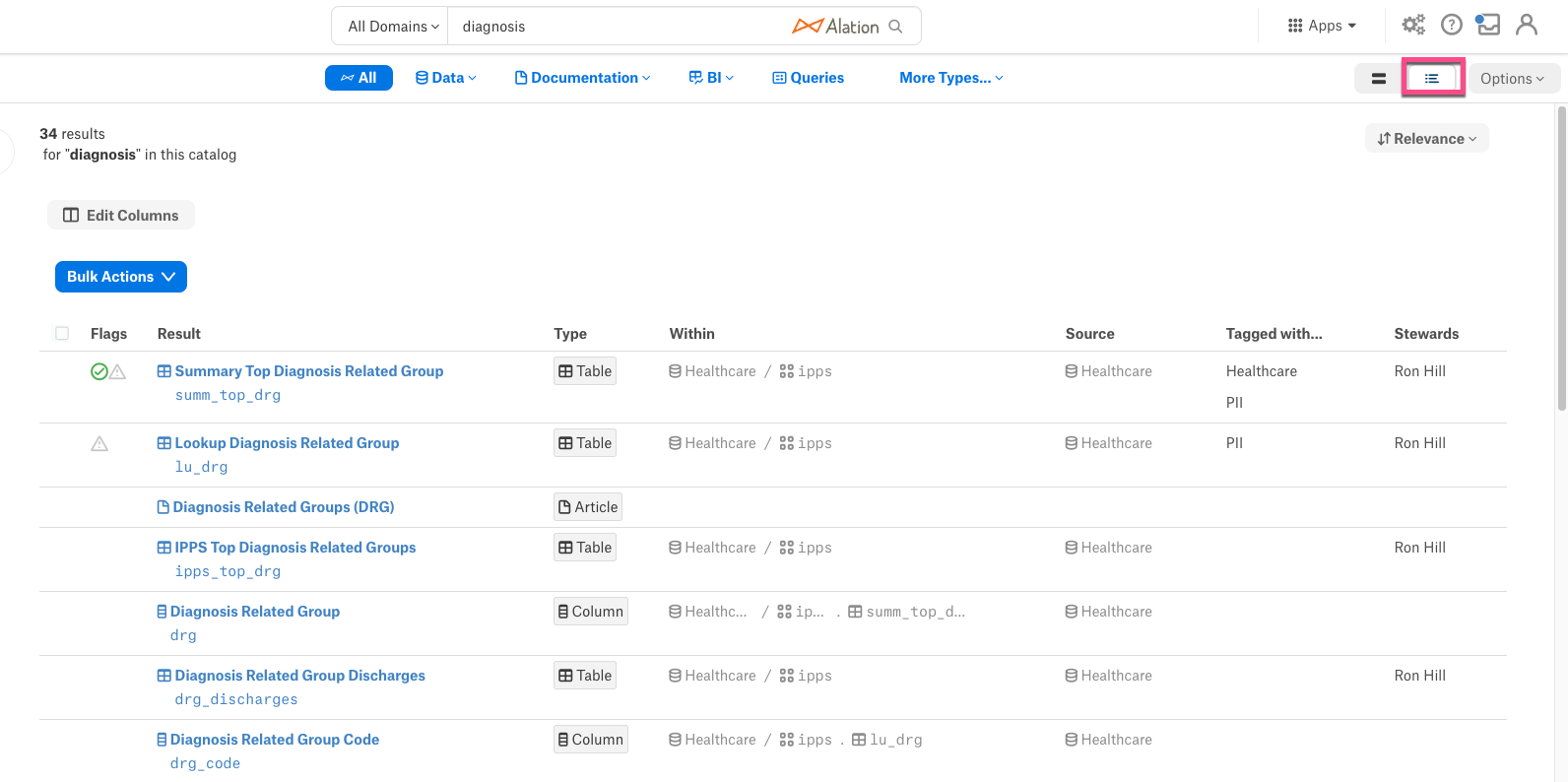
The table view displays results with sortable, filterable columns including object type, trust flags, catalog path, author, and query SQL.
To customize the table view:
Click Edit Columns to show or hide columns. The Result column cannot be hidden.
Drag columns in the Edit Columns panel to reorder them.
Click Reset to restore the default column layout.
Table view customizations persist across sessions until manually reset.
Filter Search Results
The Full-Page Search results page includes filters to narrow results. Standard filters available for most object types include:
Object Type
Starred / Watched / Visited
Source
Trust Flags
Tagged With
Additional filter categories include governance filters (policy-related), documentation filters (documents, glossaries, and terms), people and related objects (Stewards), custom fields, and date filters.
Note
Some filters include a Not set option for objects where a particular field has not been populated. Server Admins can disable Not set options using alation_conf. See Configure Alation Search on Customer-Managed Instances.
To clear all applied filters, click Options > Clear Filters, or click Clear in the Filters panel on the left.
From version 2024.1.1, you can filter search results by domain. See Search with Domains for more information.
Sort Search Results
Sort options are available at the top right of the results page and apply to both list and table views. The selected sort value persists until you log out or close the browser tab:

Sort Option |
Description |
|---|---|
Relevance |
Default. Sorts by text matches and popularity. |
Last Updated |
Sorts by most recently updated object, descending. |
Last Created |
Sorts by most recently created object, descending. |
Export Search Results
To export search results to a CSV file:
Click Options > Export Results. The Export Search Results as CSV dialog appears.
Click Confirm. The CSV file downloads, limited to
10,000rows. A download status notification is sent to your email if you have Alation email notifications enabled.
From version 2023.1.7, when exporting from the table view, the exported CSV contains only the columns you have chosen to display. In earlier versions, a default set of columns was exported.
Search Operators
In addition to standard keywords, Full-Page Search supports the following operators.
Wildcard Search
Use the * wildcard to match object names and titles by pattern. Wildcard search only matches against Name and Title fields — not Description.
Pattern |
Matches |
Example |
|---|---|---|
|
Names/titles ending with the term |
|
|
Names/titles beginning with the term |
|
|
Names/titles beginning with term1 and ending with term2 |
|
|
The term anywhere in the name or title |
|
Wildcard search is case-insensitive and supports alphanumeric characters, digits, and the following special characters: ,, >, -, _, [, ].
Combining wildcard patterns with other search operators is not supported.
Negative Search
Use a hyphen (-) to exclude a word from results. For example, apple -pie returns results containing apple but not pie. Multiple negative keywords are supported: apple -orange -banana.
Exact Search
Surround a phrase in quotation marks to search for an exact match. For example, "apple pie" returns only results containing that exact phrase.
Search Query Reference
Query Type |
Example |
Behavior |
|---|---|---|
Single keyword |
|
Returns all objects containing the keyword. |
Multiple keywords |
|
Returns objects containing either keyword. Results containing both are ranked higher. |
Explicit AND |
|
Returns objects containing both keywords. |
Explicit AND with extra keyword |
|
Parsed as |
Negative keyword |
|
Returns objects with apple but not orange. |
Exact phrase |
|
Returns objects containing the exact phrase. |
Exact phrase + negative |
|
Returns objects with the exact phrase but not the negative keyword. |
Exact phrase + keyword |
|
Returns objects with the exact phrase and optionally the keyword. |
Multiple exact phrases |
|
Returns objects containing either phrase (implicit OR). |
Underscore-connected |
|
Returns objects matching apple, orange, or apple_orange. Results with the full string ranked higher. |
Dot-separated |
|
By default, treated as a hierarchical path (e.g., schema.table). Configurable — see Configure Alation Search on Customer-Managed Instances. |
Wildcard |
|
Matches names/titles by pattern. |
Plus symbol |
|
Supported as a literal search term. From version 2024.1.5. |
Exclamation mark |
|
Supported as a literal search term. From version 2024.1.5. |
Multiple explicit AND operators (e.g., apple AND orange AND pear) and nested AND queries are not supported.
Saved Searches
Available from version 2021.3.
You can save search queries, including keywords, filters, and sort settings, for quick reuse. Saved searches are user-specific and visible only to you.
Save a Search
On the Full-Page Search results page, configure your desired keywords, filters, and sort settings.
Click Options > Save Search, or click the + icon in the Saved Searches section at the bottom left.
Full Page Search > Options > Save Search:

Full Page Search > Saved Search:

Enter a name in the Name Your Search field and click Create.

The saved search appears in the Saved Searches section.

Manage a Saved Search
When you modify a saved search, the Save Changes dropdown appears with the following options:
Save Changes: Saves your changes to the existing saved search
Save as New Search: Saves the modified search as a new entry
Rename Search: Renames the saved search
Share Search: Copies a shareable link; other users can paste it into their browser and save it for future reuse
Discard Changes: Reverts unsaved changes
Close Saved Search: Closes the current saved search view
Delete: Permanently deletes the saved search
Changes are lost if you navigate away, perform a new search, or select a different saved search without saving.
Search by Synonyms and Lexicon Abbreviations
Available from version 2023.3.2.
Alation Search supports synonyms to help users find objects using alternative terms. Two sources of synonyms are supported:
Custom synonyms: Defined via the search synonym API. For example, you can define
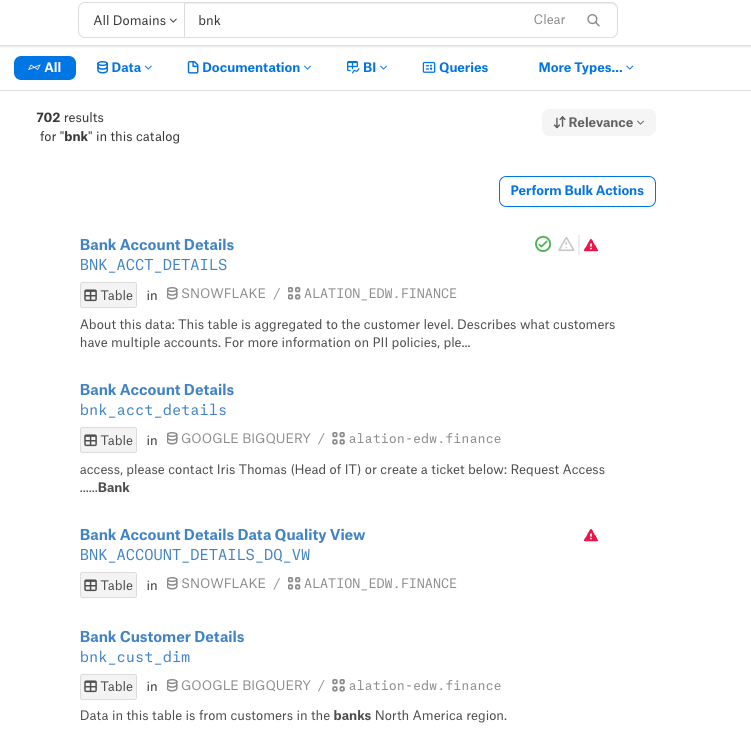
msftas a synonym forMicrosoft.Lexicon abbreviations: Confirmed abbreviation-expansion pairs from Lexicon are treated as synonyms. A search for an abbreviation also returns results matching its expansion. Note that searching for a full word does not return Lexicon abbreviations. When a user enters a search word that is an abbreviation that happens to have a confirmed expansion in Lexicon, the search results will return objects that match both the abbreviation the user entered and its confirmed expansion from the Lexicon. By default, the Lexicon Search feature is enabled. Refer to Enable the Lexicon Search to enable or disable the Lexicon Search.
Example:
In this example, the search keyword bnk is a Lexicon abbreviation and the search also returns results which match its expansion, which is bank:
Note
If a user searches by a full word, the results will not return Lexicon abbreviations.
Search Ranking
Applies from version 2022.4.
Alation Search ranks results using a combination of text match relevance, object popularity, and trust flags:
Endorsement boosts an object’s search rank, surfacing trusted data near the top of results.
Deprecation penalizes an object’s rank, moving it toward the bottom regardless of any endorsements.
By default, Data Sources, Terms, Articles, and Tags receive the highest ranking boost. Server Admins can adjust the relative weight of object types and trust flag influence using alation_conf. See Configure Alation Search on Customer-Managed Instances.
Bulk Actions
Full-Page Search results support bulk operations on selected objects. See the following topics for details: