
Temporary, Deleted, and Uncataloged Objects in Lineage
Alation Cloud Service Applies to Alation Cloud Service instances of Alation
Customer Managed Applies to customer-managed instances of Alation
Applies from version 2026.7.1.0
Lineage works best when it shows how your data really moves. But some pipelines include objects that aren’t live cataloged tables, such as deleted objects, uncataloged objects, and true temporary tables. In the past, deleted objects displayed a GONE badge, while uncataloged and temporary objects were both labeled TMP with no distinction between them. Lineage could also stitch across a deleted or uncataloged node, making a broken pipeline appear connected and active.
Advanced Lineage Handling is a global, admin-controlled setting that changes how deleted, uncataloged, and temporary objects are displayed in the lineage graph, and how the graph itself is constructed around them. This page describes the setting and how it changes what you see when you open a lineage chart.
Note
This page uses “deleted” to mean both soft-deleted and hard-deleted objects. Alation applies the same behavior to deleted and uncataloged objects, even though the UI distinguishes them with DEL and UNCAT badges.
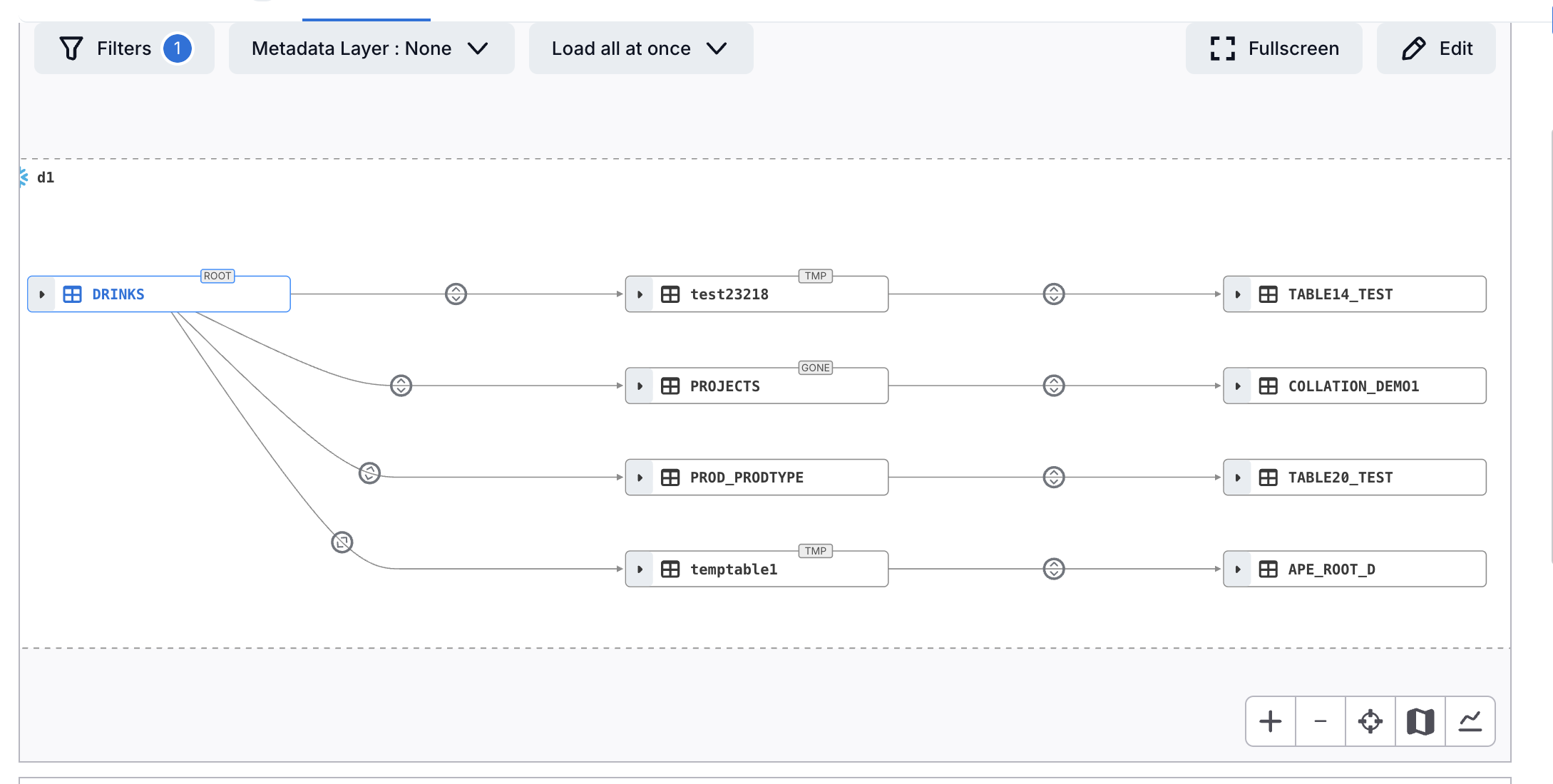
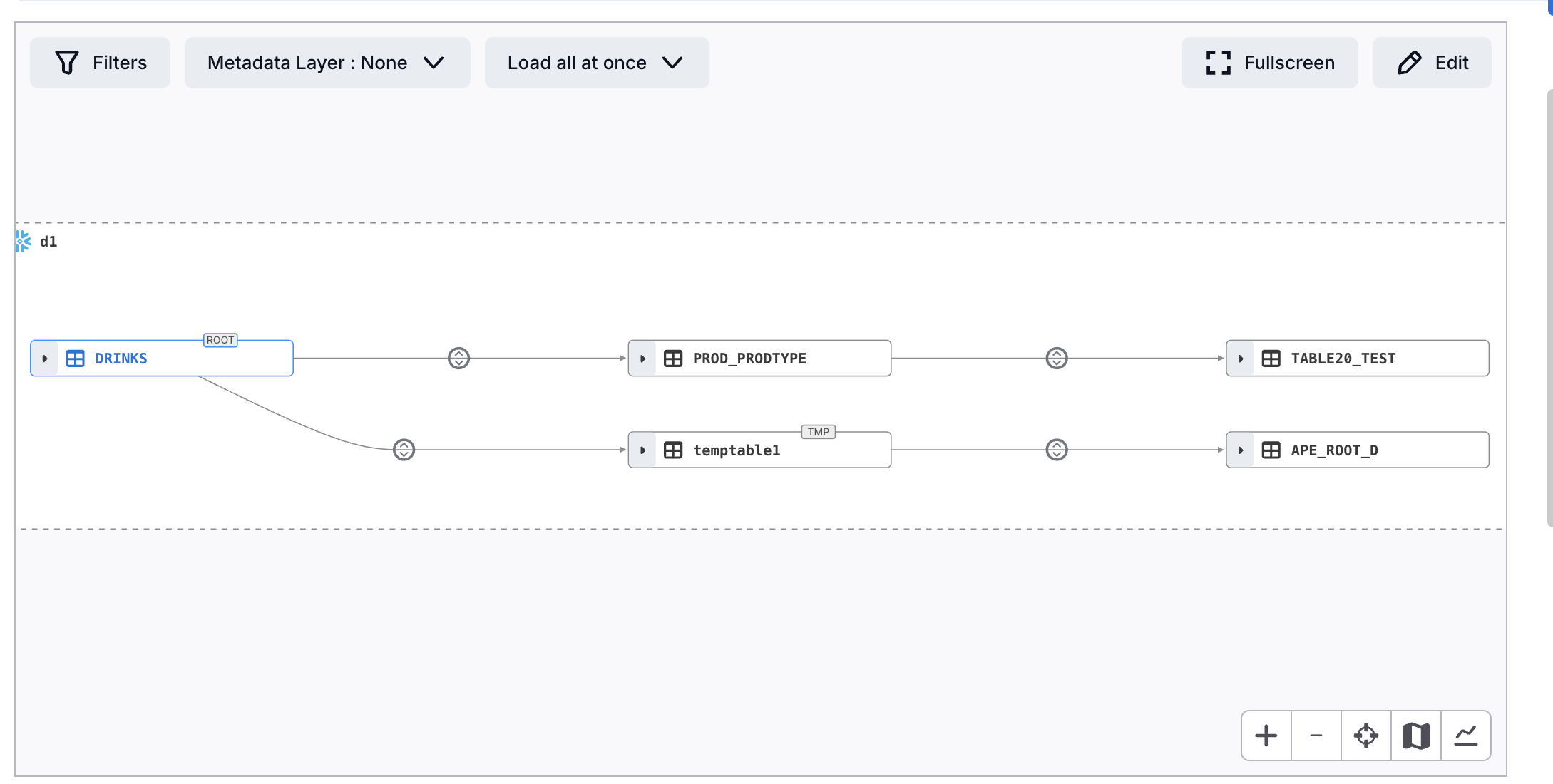
The image below shows the default lineage chart before Advanced Lineage Handling is enabled. Deleted objects display a GONE badge, and all objects including temporary tables are stitched through by default.
Turn on Enable Advanced Lineage Handling for Deleted and Temporary Objects to:
Retire the legacy Gone filter.
Narrow the Temp filter to true temporary tables only.
Give deleted and uncataloged nodes their own dedicated behavior, described below.
Configure Advanced Lineage Handling
To enable the advanced lineage settings, go to Admin Settings > Platform Settings > Lineage Settings > Default Filters (or Customize Catalog > Lineage in the Classic User Experience).
Important
A Server Admin or Catalog Admin role is required to change these settings.
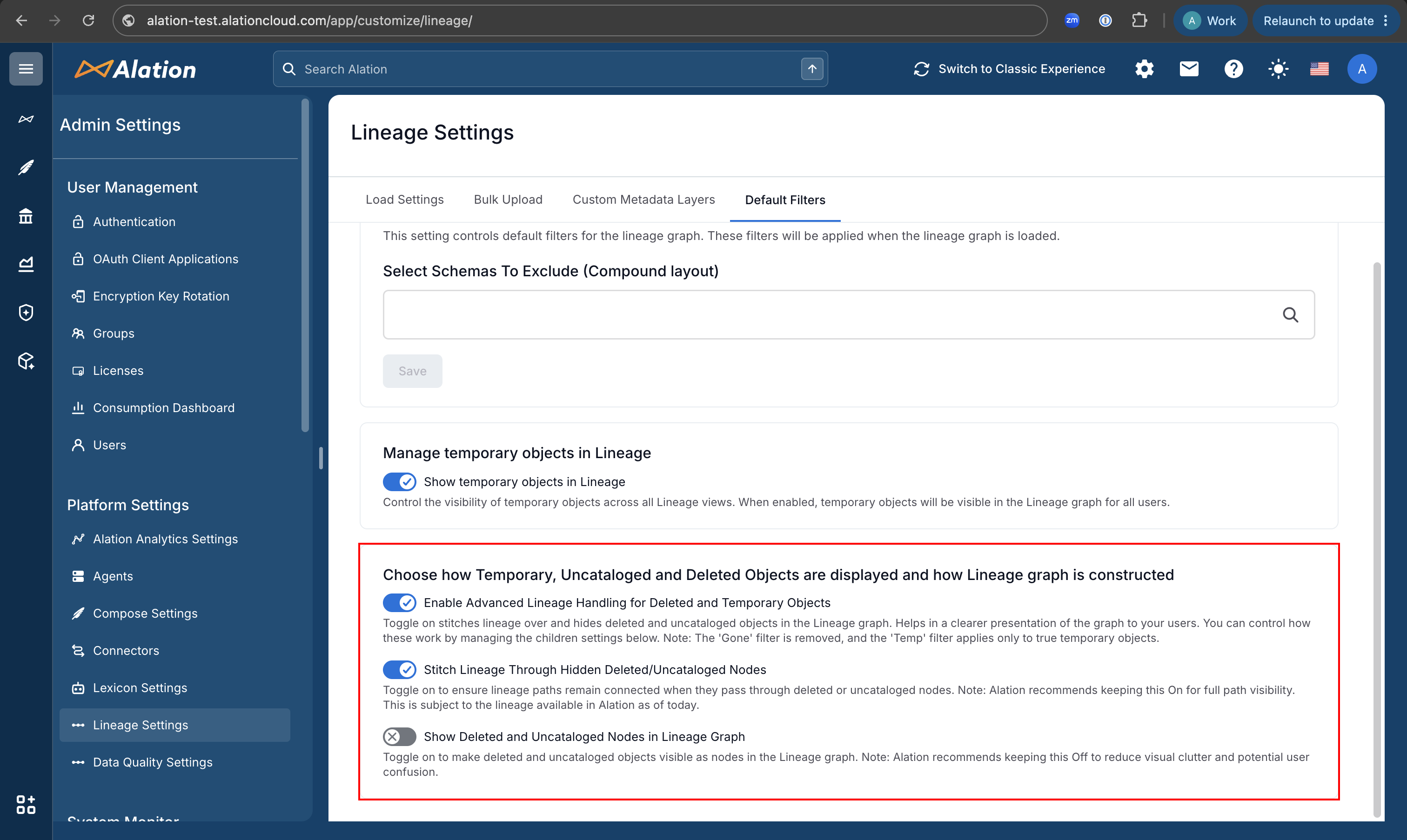
Three toggles govern this behavior:
Setting |
Default |
What it does |
|---|---|---|
Enable Advanced Lineage Handling for Deleted and Temporary Objects |
Off |
Master switch. Turns on the new behavior described on this page. Retires the Gone filter and narrows the Temp filter to true temp tables only. |
Stitch Lineage Through Hidden Deleted/Uncataloged Nodes |
On |
Keeps a lineage path connected across a deleted or uncataloged node. When turned off, the path breaks at that node instead. |
Show Deleted and Uncataloged Nodes in Lineage Graph |
Off |
Draws deleted and uncataloged nodes in the graph. When shown, each node has a red border and a DEL or UNCAT badge. |
Stitch and Show Behavior
Stitch Lineage Through Hidden Deleted/Uncataloged Nodes and Show Deleted and Uncataloged Nodes in Lineage Graph work independently, so together they produce four ways a deleted or uncataloged node can appear between an upstream and downstream object:
Stitch |
Show |
What you see |
|---|---|---|
On (default) |
Off (default) |
Node hidden; lineage stitched through it. |
On |
On |
Node shown with a red border and DEL/UNCAT badge; lineage stitched through it. |
Off |
Off |
Node hidden; lineage breaks at it. |
Off |
On |
Node shown with a red border and DEL/UNCAT badge; lineage breaks at it. |
Stitch On, Show Off (default)
Node hidden; lineage stitched through it. The graph appears fully connected with no indication that a deleted or uncataloged node exists in the path.
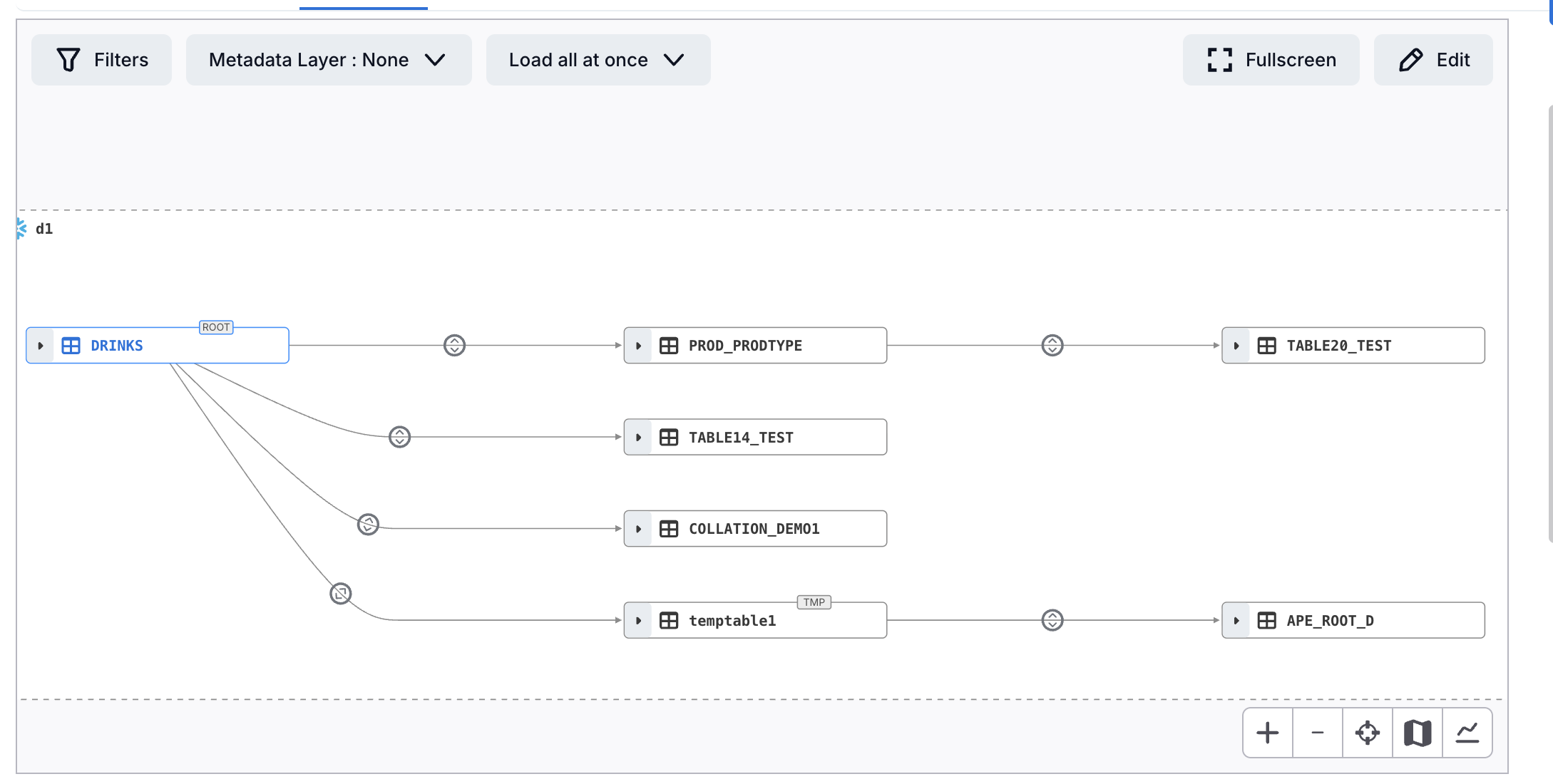
Stitch On, Show On
Node shown with a red border and DEL or UNCAT badge; lineage stitched through it. Use this combination to audit which nodes are deleted or uncataloged while keeping the graph connected.
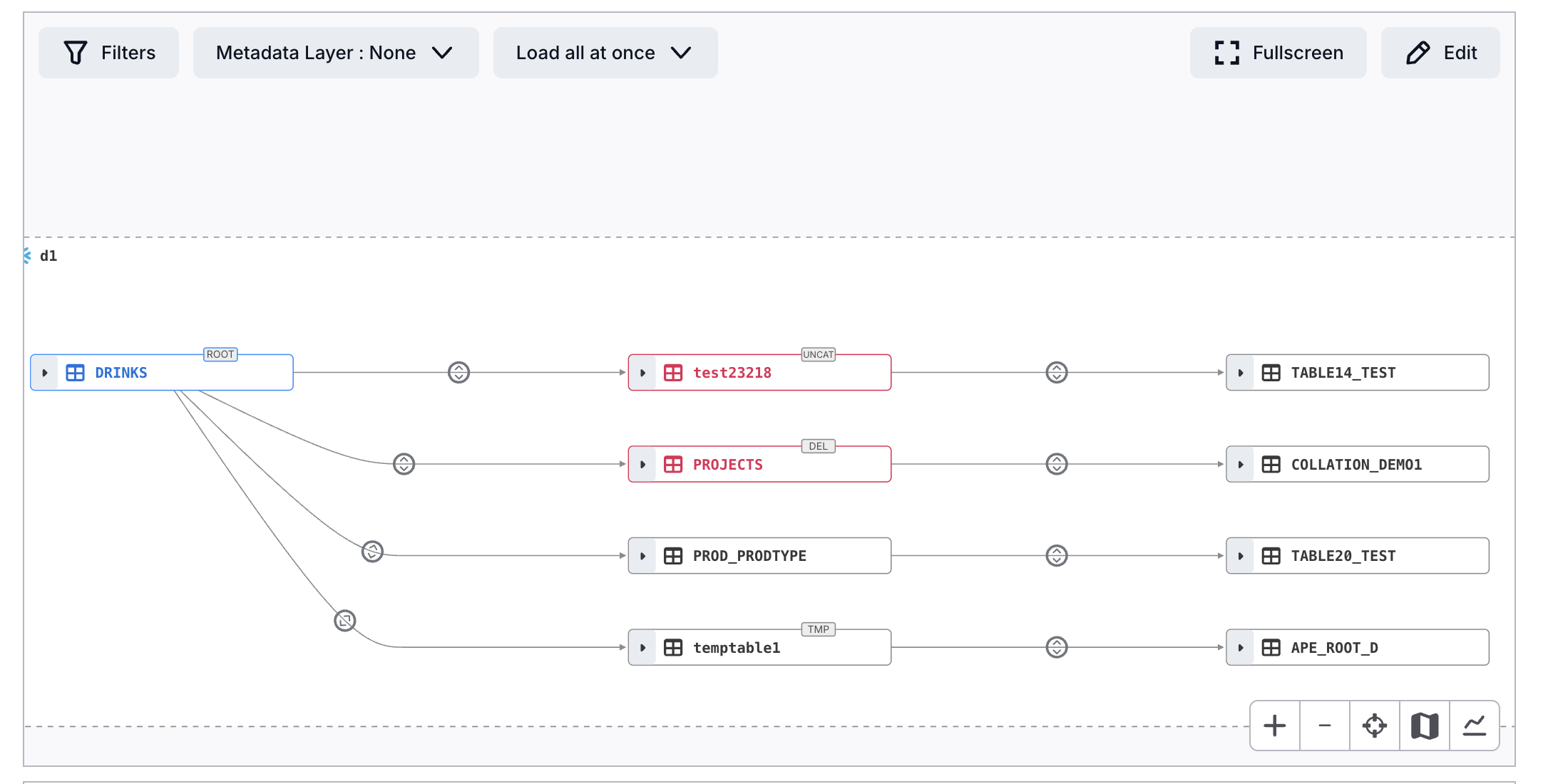
Stitch Off, Show Off
Node hidden; lineage breaks at it. The downstream path is no longer visible, making pipeline breaks apparent without exposing the deleted or uncataloged node.
Stitch Off, Show On
Node shown with a red border and DEL or UNCAT badge; lineage breaks at it. Use this combination to see exactly which nodes are breaking the pipeline.

The default combination, stitch through and keep hidden, gives most users a clean, fully connected graph. Turn on Show Deleted and Uncataloged Nodes in Lineage Graph to reveal deleted and uncataloged nodes in red for troubleshooting or auditing. Turn off Stitch Lineage Through Hidden Deleted/Uncataloged Nodes to make a broken pipeline visibly break in the graph instead of appearing connected.
True Temporary Objects
True temporary tables are handled separately from deleted and uncataloged objects. They continue to be shown and stitched through by default, and you can still hide them with the Temp filter — that filter just no longer also hides deleted objects.
Does This Change My Existing Lineage?
No. Advanced Lineage Handling changes how deleted, uncataloged, and temporary objects are displayed and how the graph is constructed around them. It does not change the underlying lineage relationships Alation has already collected. An admin can adjust these toggles at any time without affecting the collected metadata.