
Prerequisites
Alation Cloud Service Applies to Alation Cloud Service instances of Alation
Enhanced Connector Enhanced connectors add extended capabilities and require a separate entitlement in addition to your Alation platform license.
Before you install and configure the Amazon SageMaker Catalog connector in Alation, ensure that you complete the prerequisites.
Enable SageMaker Source in Alation
Ensure that you enable the SageMaker source type in your Alation instance before you install the SageMaker Catalog connector.
Ensure that you’re using the Alation version 2025.3.2 or later.
Contact Alation Support to enable the feature flag needed for this functionality in your Alation instance. The flag name and example configuration values are provided below to illustrate the required settings.
alation_conf alation.feature_flags.DEV_otype_service_enabled_otypes -s elt_source,elt_project,elt_model,elt_model_column,elt_job_run,dz_source,dz_project,dz_domain,dz_asset_redshift_view,dz_asset_redshift_table,dz_asset_glue_view,dz_asset_glue_table,dz_asset_custom,dz_default_asset_field
Once the feature flag is enabled, the SageMaker source type will be available in Alation for creating SageMaker sources.
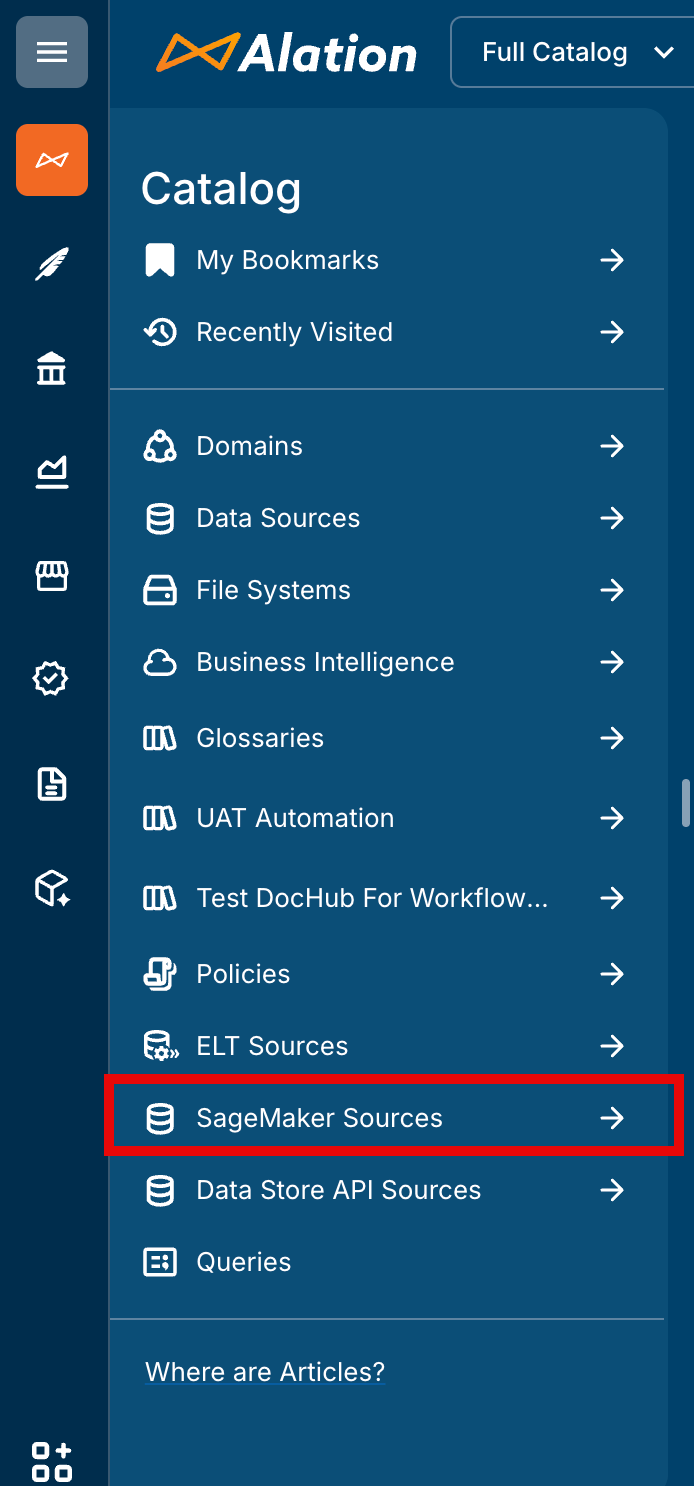
You can customize the SageMaker source type default template. Go to Settings > Customization > Custom Templates and edit the SageMaker Source Type template.
Requirements for Basic Authentication
Basic authentication requires an AWS IAM user, the access key ID and access key secret for this user.
To use basic authentication, create an AWS IAM user account for Alation and save the values of the access key ID and access key secret. See Create an IAM user in your AWS account for more details.
Grant the IAM user the required permissions (see Permissions for IAM User Account below).
Permissions for IAM User Account
Grant the user account you created for Alation the AmazonDataZoneFullAccess policy. If the AmazonDataZoneFullAccess policy cannot be granted, you can grant the minimum required permissions listed below:
Policy |
Purpose |
|---|---|
|
To get list of domains from SageMaker |
|
To fetch the domain units within a Domain |
|
To get details about a domain from SageMaker |
|
To get details about a domain unit from SageMaker |
|
To search and get list of assets |
|
To get list of projects |
|
To get details of individual assets |
|
To get details about custom metadata forms associated with custom assets |
|
To get information about lineage between assets from SageMaker |
|
To get the user profile associated with AWS
SageMaker assets, which is used to populate the
|
|
Only if redshift cluster host and port details for redshift assets is required to be ingested which will help in establishing cross-system lineage with BI sources. |
In addition to the required IAM permissions, users can apply more granular access controls at the individual DataZone or SageMaker project level. The IAM user configured in the source settings must be added as a member of each project in the SageMaker (AWS DataZone) portal to allow Alation to extract assets from those projects. Only Viewer access is required for asset extraction.
Requirements for AWS IAM Role Authentication
Authentication with an AWS IAM role does not require an IAM user. This authentication method uses an instance profile that assumes a role allowing access to Amazon resources. This authentication method works for authenticating across AWS accounts.
To configure STS authentication with an AWS IAM role, use the steps in Authenticate via AWS STS and an IAM Role. To provide access to the data source via an IAM role, use the permissions information in Permissions for IAM User Account.
Ensure the following while you set up authentication using an AWS IAM role:
Ensure that the Cred Type is set to
instance_profilewhen you create a authentication profile in Alation.Copy the ARN and External ID of the role to be assumed from Alation while you create the authentication profile. See Step 4—AWS IAM: Create a Resource Tag and Define the Trust Relationship for details.